Compliance > Activity Report allows you to generate downloadable reports of user activity across iManage Work. Use these reports to review document-related actions (for example, View, Print, Checkout, Export, Create Version) for one or more users over a selected date range. The reports support targeted auditing, operational oversight, and compliance investigations.
Outputs:
CSV: Flat, list-style export.
EXCEL: Structured, multi-sheet Microsoft Excel summary workbook with built-in Pivot Tables.
NOTE: The Microsoft Excel export includes interactive PivotTables and the underlying data used to generate them. You can customize views directly in Excel by adding fields, changing groups, and applying filters. For guidance on working with Excel summary workbooks, PivotTables, field availability, refresh behavior, and performance considerations, refer to Working with Microsoft Excel PivotTables in Threat Manager exports.
In this section:
- Open the User Activity Report page
- Filter and refine report results
- Generate a User Activity report
- Where to find the generated User Activity Report
- Understanding the report formats
- What’s in the Microsoft Excel summary workbook
Open the User Activity Report page
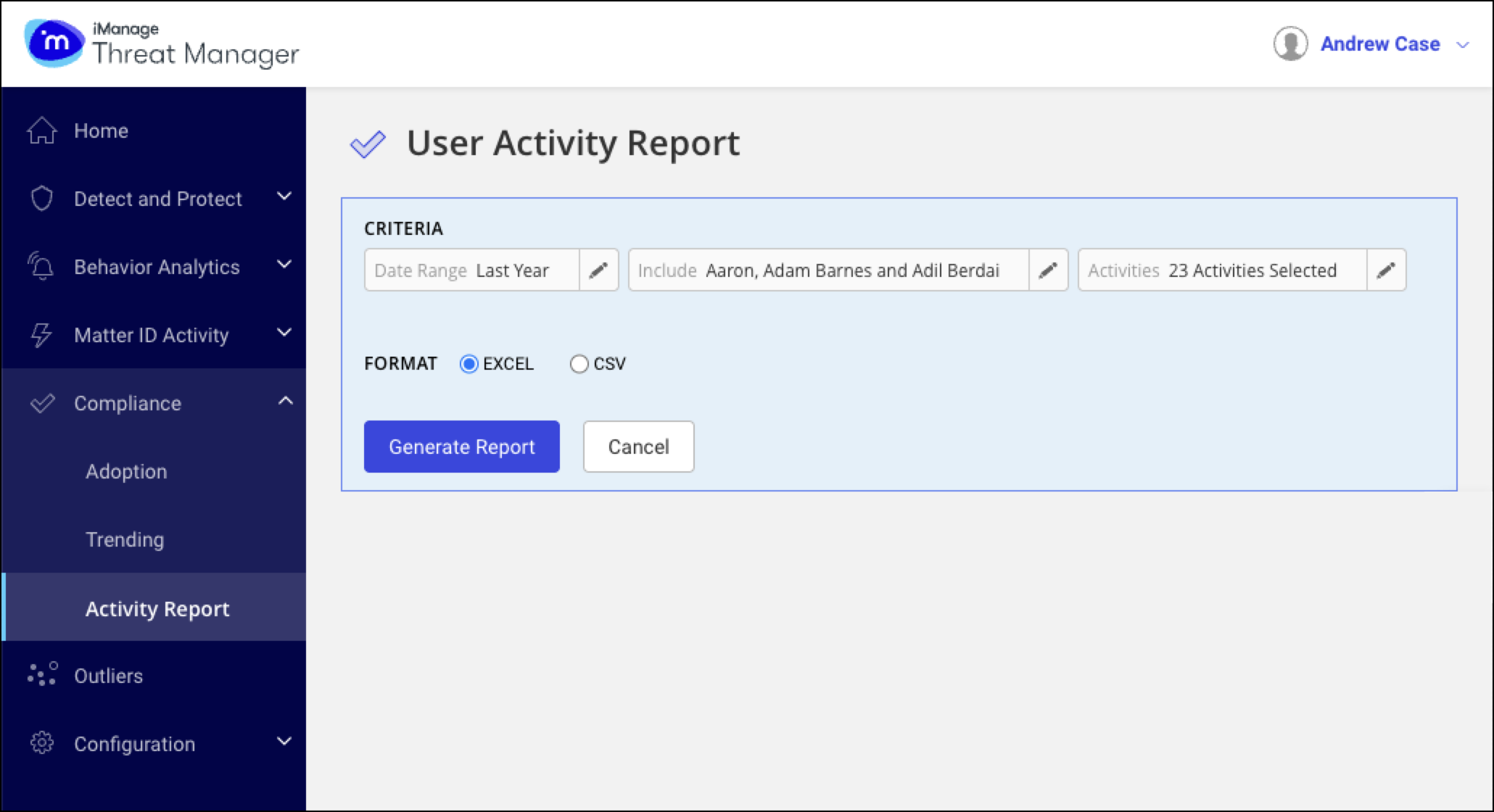
From the Home screen or navigation bar, go to Compliance > Activity Report. The User Activity Report page opens.
Filter and refine report results
Use the Criteria filters to narrow the report to the time period, users, and activity types you want to include.
Date Range: Select the start and end dates for the activity data to include.
Include: Choose one or more users to include in the report.
Activities: Select the activity types to include. By default, compliance-indicating activity types are preselected.
NOTE: The activity types available in the list depend on your organization’s configuration and the audit fields that are enabled.
Generate a User Activity report
Open Compliance > Activity Report. The User Activity Report page opens.
Set the Date Range.
Select one or more users to Include.
Choose Activities to include. All compliance-indicating activities are selected by default.
Select a Format: EXCEL (Excel summary workbook) or CSV (flat).
Select Generate Report.
When prompted, save the file to the default Downloads or choose another location.
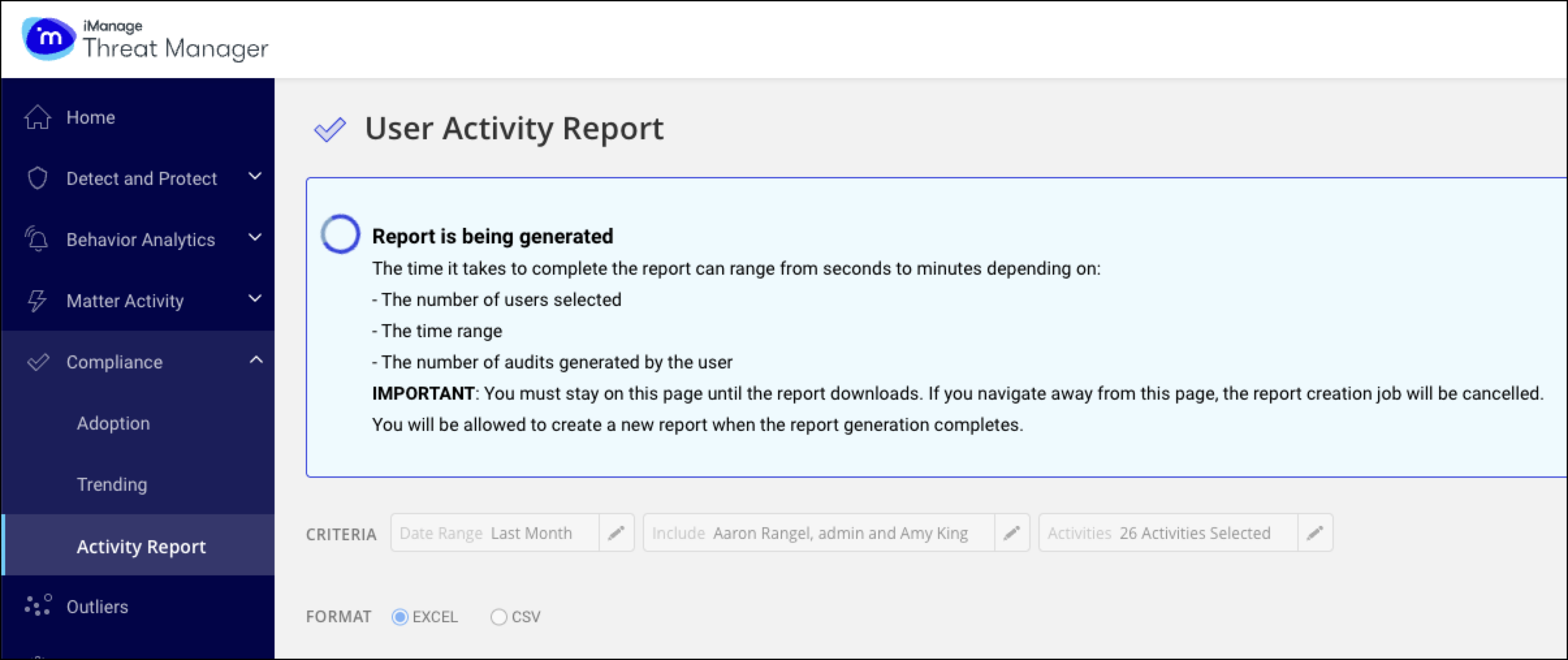
IMPORTANT: Stay on the User Activity Report page until the download finishes. Navigating away cancels the generation. Generation time varies based on date range, number of users, and audit volume.
Where to find the generated User Activity Report
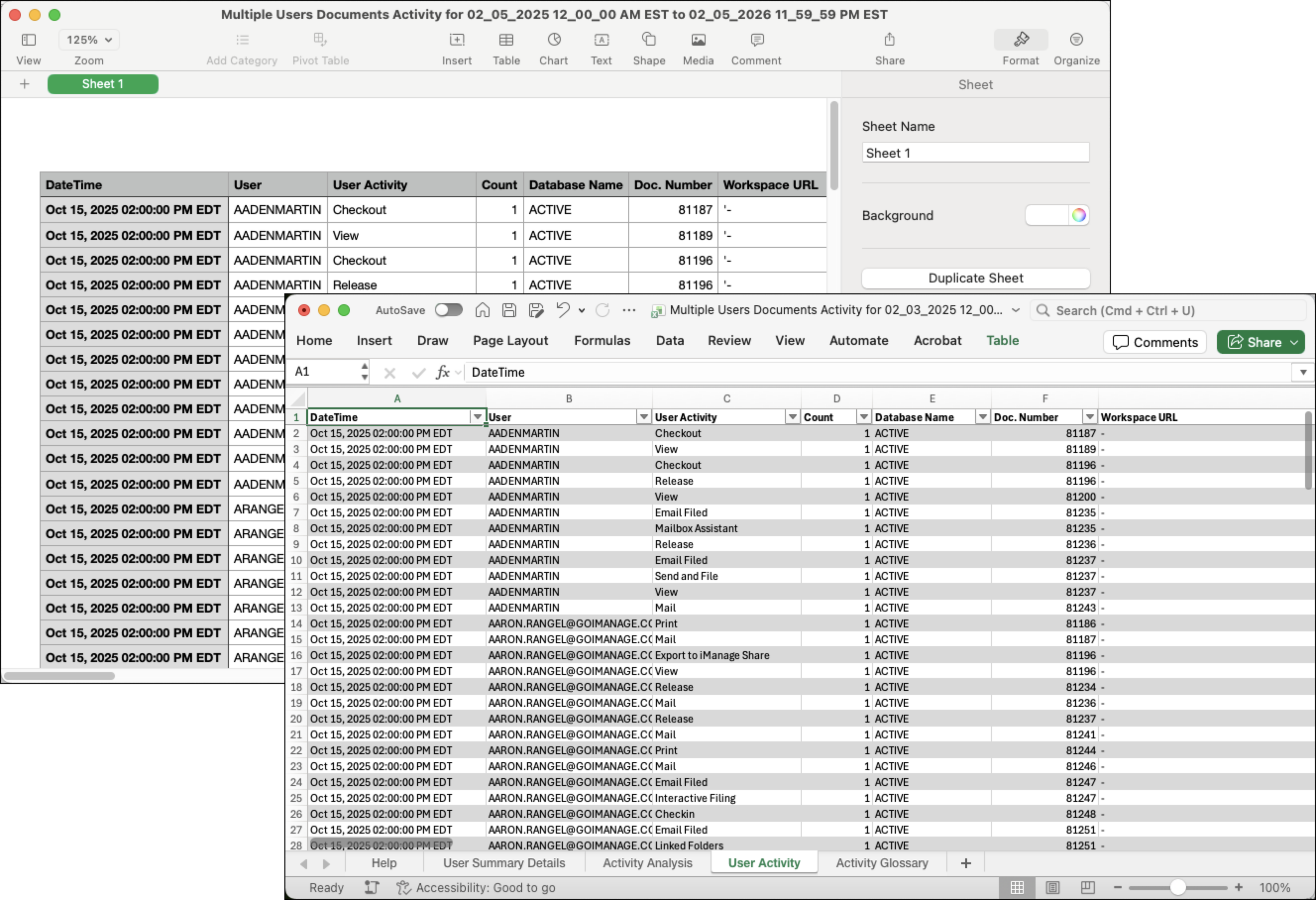
After generation, the Microsoft Excel or CSV report is saved by your browser. Filenames begin with:
The username (for a single user), or
Multiple Users Documents Activity (for multi-user reports)
Understanding the report formats
CSV export (flat)
A single, flat file of the activity results filtered on the page at generation time.
Does not include summaries or PivotTables.
Best for quick ad hoc analysis or ingestion into external tools.
EXCEL export (Excel summary workbook)
A multi-sheet Microsoft Excel summary workbook.
Includes summary worksheets, built-in PivotTables, and the underlying data required for interactive analysis.
Best for investigations, sharing, and interactive analysis directly in Microsoft Excel.
NOTE: PivotTables can display only the fields included in the export. If a field does not appear in the PivotTable Fields list, it was not included when the report was generated. For details, refer to Working with Microsoft Excel PivotTables in Threat Manager exports.
What’s in the Microsoft Excel summary workbook
The Microsoft Excel summary workbook generated from Compliance > Activity Report contains the following worksheets. Each worksheet provides a different view of user actions and supports investigation, auditing, and reporting workflows.
Help
Lists each worksheet in the export and briefly describes its purpose.
User Summary Details
Provides user identity information (ID, name, title, department, manager, practice area, location, phone) along with summary metrics such as:
Unique clients and matters accessed
Unique documents accessed
Documents owned vs. not owned
This data is populated through the User Metadata Importer.
Activity Analysis (PivotTable)
An interactive PivotTable for analyzing user activity across clients, matters, and documents. Features include:
Drill-down by user, client, matter, document
Flexible filtering, grouping, and sorting
Date/time filters
Activity-type breakdown (for example, View, Print, Checkout, Email Filed, Export to iManage Share, Document Create)
NOTE: Client and Matter values come from Control Center metadata (custom1 and custom2). Captions may appear as Custom1/Custom2, Client/Matter, or tenant-specific labels.
User Activity
A detailed export of all document-related and workspace-related actions performed by the selected user(s) during the specified date range. This worksheet provides the raw dataset for deeper investigation or custom analysis in Excel.
Field reference
The User Activity sheet includes the following commonly used fields. These values originate from iManage Control Center and may appear with tenant-specific labels. Not all fields appear in every export.
Field | Description |
|---|---|
DateTime | When the activity occurred. Recorded in UTC or local time, based on system settings. |
User | Username that performed the action. Typically matches the user’s iManage or Active Directory ID. |
User Activity | Action performed (for example, Checkout, Release, Create Version, View, Print, Export). |
Count | Number of times the user performed the action on the document at the given timestamp. For details, refer to Count field (details). |
Database Name | The iManage Work database (library) that contains the document. |
Doc. Number | Unique document identifier in iManage. |
Workspace URL | Provides a direct link to the workspace associated with a workspace-level action (such as Workspace Created or Change Security), enabling you to open and review the correct workspace, including those created under an unassigned client/matter. This is important as in the past, you could not determine the workspaces for which the change security events triggered for. |
Workspace Name | The name of the workspace associated with a workspace-level action. Helps you identify and confirm the workspace affected, especially when document numbers don't uniquely identify the workspace. |
Filename | Document name. |
Version | Document version at the time of the activity. |
File Size | Most recent file size known to Threat Manager at download time. If File Size displays NA, the document was created before file size metadata was captured in audit logs. Once new activity occurs on that document, its size will appear in future reports. The field label may vary based on the docsize caption configured in iManage Control Center. |
Application Name | Identifies the application or integration used to perform the activity (for example, Word, Outlook, a web client, or an API). If the system can't map the value, or if the activity occurred before application-name mapping was available, a legacy internal numeric ID may appear. |
Comments | Optional notes or system-generated context (for example, export method, automation tags). |
Client/Client ID | Client name and identifier (caption based on your tenant’s Control Center configuration). |
Matter/Matter ID | Matter name and identifier (caption based on your tenant’s Control Center configuration). |
Practice Area | Practice-area classification (if configured). |
Author/Author Full Name | Document author identifiers, if available. |
Additional metadata fields
Depending on your organization’s configuration, the User Activity sheet may also include additional fields. These values are also sourced from iManage Control Center and may vary by tenant. Not all additional fields appear in every export.
Author/Author Full Name
Operator/Operator Full Name
Document classification: Doc Type, Subclass, File Type
Status, Status Description
Business/context fields: Jurisdiction, Industry
Email context (From, To)
Custom fields (for example, Custom4, Custom5, Custom15, Custom29)
Count field (details)
The Count field indicates how many times a user performed a specific activity at a given timestamp.
Each row in the report represents a unique combination of:
Activity time
User ID
Activity type
Document ID
The Count value reflects the number of occurrences of that activity on that document at that timestamp.
Examples:
A single export of one document results in Count = 1.
Multiple exports of the same document at the same timestamp result in Count > 1.
(The Count will reflect the total occurrences).Exporting five documents in one action produces five rows, each with Count = 1.
NOTE: iManage Work logs activity per document. Count is measured per document, per activity, per timestamp, not per multi-document bulk action.
Activity Glossary
Definitions of the activity types present in the workbook. The glossary includes only the activity types contained in the export. This helps readers (especially those who don’t sign in to iManage Threat Manager) interpret activity types.
Metadata (Appname and Comments)
Appname and Comment fields from audit entries in iManage Work are available in relevant CSV downloads.
Appname (Application Name) refers to two distinct audit attributes that appear in reports/exports:
Host application/integration (for example, Word, Outlook, API): identifies the program or integration through which the user performed the action. This value appears in the Compliance > Activity Report export (User Documents Activity sheet) under Application Name. If an activity predates application-name mapping or the value is unmapped, a legacy internal (numeric) ID may be shown.
iManage client type (for example, Work Web, Work Desktop for Windows, iManage Rive, Work for iOS): identifies the iManage client that generated the action. These values come from the DocHistory AppName field in iManage Work and can be localized/mapped through Settings > Language packs in Threat Manager.
For Mail activity, the audit Comments tell you whether the user attached a link to an iManage document, attached the iManage document, or both. These are the audit comments recorded with the action, not the Comment field on the document profile. In other contexts (for example, exports and Share operations), Comments may include other audit-level details captured by iManage Work and surfaced in Threat Manager reports/exports.
The Comment field supports up to 2,000 characters, including hyperlinks. Comments shown in UI lists are clickable and open in an expanded viewer.
Application name can also be used as Detect and Protect rule criteria and as an alert/document filter, drawing on the same underlying application data described above. For details, refer to Creating a Detect and Protect rule and Using the Detect and Protect Alert List.