If your administrator has granted you access to send collaboration links, the Share Document menu option is available for supported document types.
The goal of iManage Collaboration Links is to enable link recipients to seamlessly edit documents shared using iManage Next Generation Co-authoring.
The following document types can be edited, viewed, and downloaded by users:
Microsoft Word: .docx
Microsoft PowerPoint: .pptx, .ppsx
Microsoft Excel: .xlsx, .xlsm, .xlsb
All other document types apart from email can also be shared using collaboration links, but only downloading them is supported.
The Share Document menu option is available in the following places across the iManage Work user interface:
Context menu
Header bar in Preview
Toolbar when selecting between 1 and 5 documents.
Properties panel when you select:
Shared Field > Share Document in the Grid/List view
Shared Field > Share Document in Preview
Shared Field > Share Document in iManage Work 10 Desktop
NOTE: The Share Document option isn’t available for the following file types:
.eml
.msg
GW
NOTES
MIME
Select the document(s) that you wish to share for collaboration. To share a document, you must have Read/Write or Full Access. You can share up to five documents simultaneously.
Select Share and then select Share Document on the context menu or the toolbar, to open the Share item dialog.
NOTE: The Share Document menu option is available only for the latest version of any document.Figure: Sharing a document using a collaboration link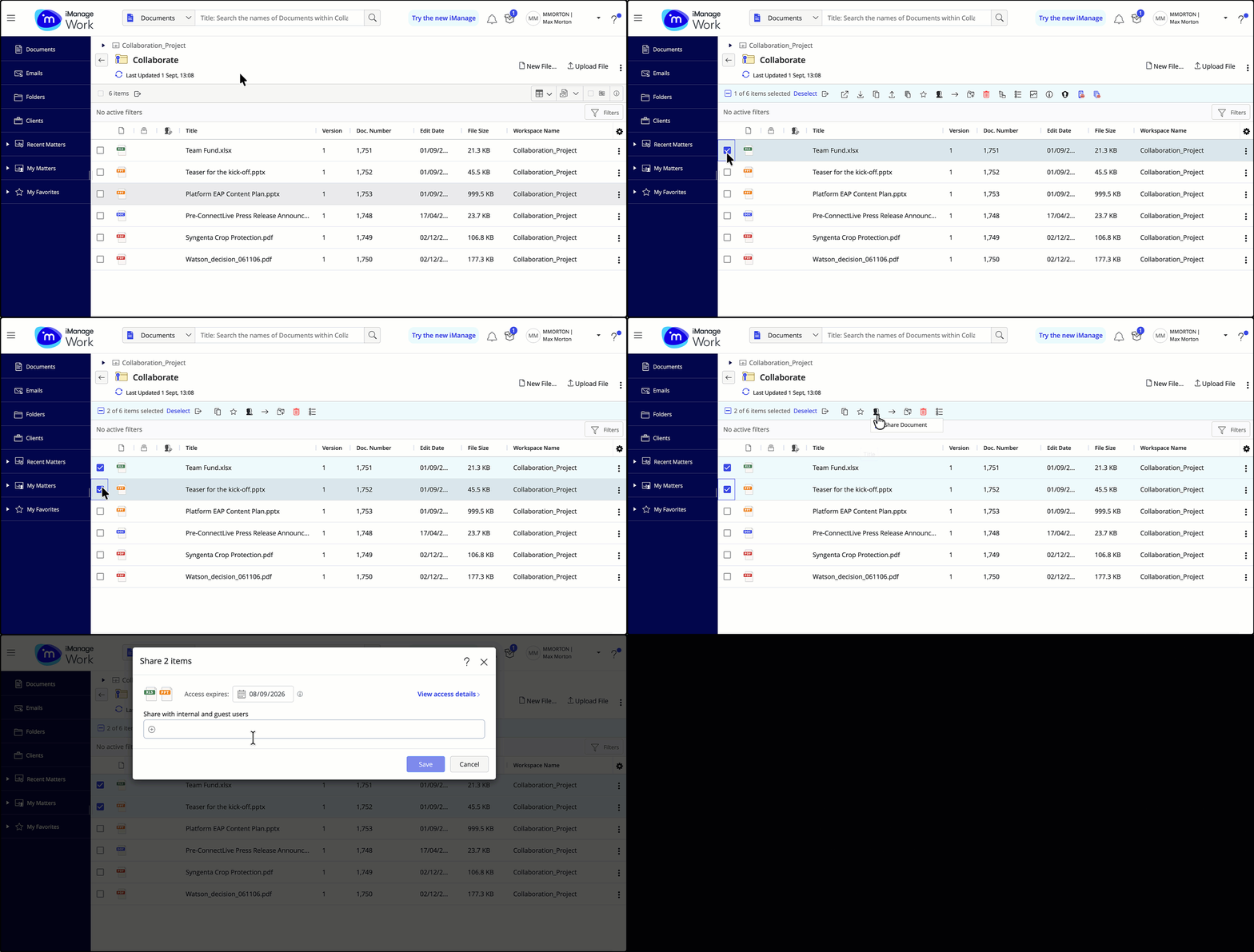
Configuring the collaboration link:
Select inside the calendar field to set an expiration date for the collaboration link.
A default expiration date of between 1 and 30 days will already be set for you by your iManage administrator, but you can change this to any value between 1 and 30 days to meet your needs.
The minimum expiration window can be set by your administrator, while the maximum is 30 days.
Once applied, this date applies uniformly to all individuals invited to collaborate on the document.
In the Share with internal and external guest users field, start entering the names or email addresses of the users you wish to collaborate with.
Internal iManage users are displayed as in the iManage Work Security panel or Author field. Inviting a group of users isn't supported for collaboration links to ensure that every document is shared with an explicit list of users at all times.
Any other user will be displayed as a Guest—this could be a client or another member of your own company who doesn't have an active iManage user account.
Guest users can be invited by manually entering or pasting their email address.
A maximum of 25 individuals can be invited to collaborate on a document at a time. As the link creator, you are automatically added to the invite list as a standard user upon sending, so that you can access the document without having to explicitly add yourself.
If you exceed this number when inviting users, the UI will inform you of the limit.
NOTE:Internal email addresses from your own company get converted to iManage users if they match a user name in the lookup.
Individual or company email domains can be blocked by your administrator. The user interface will inform you if a user is blocked either at the time of adding them or after you select Save.
Figure: Inviting users to collaborate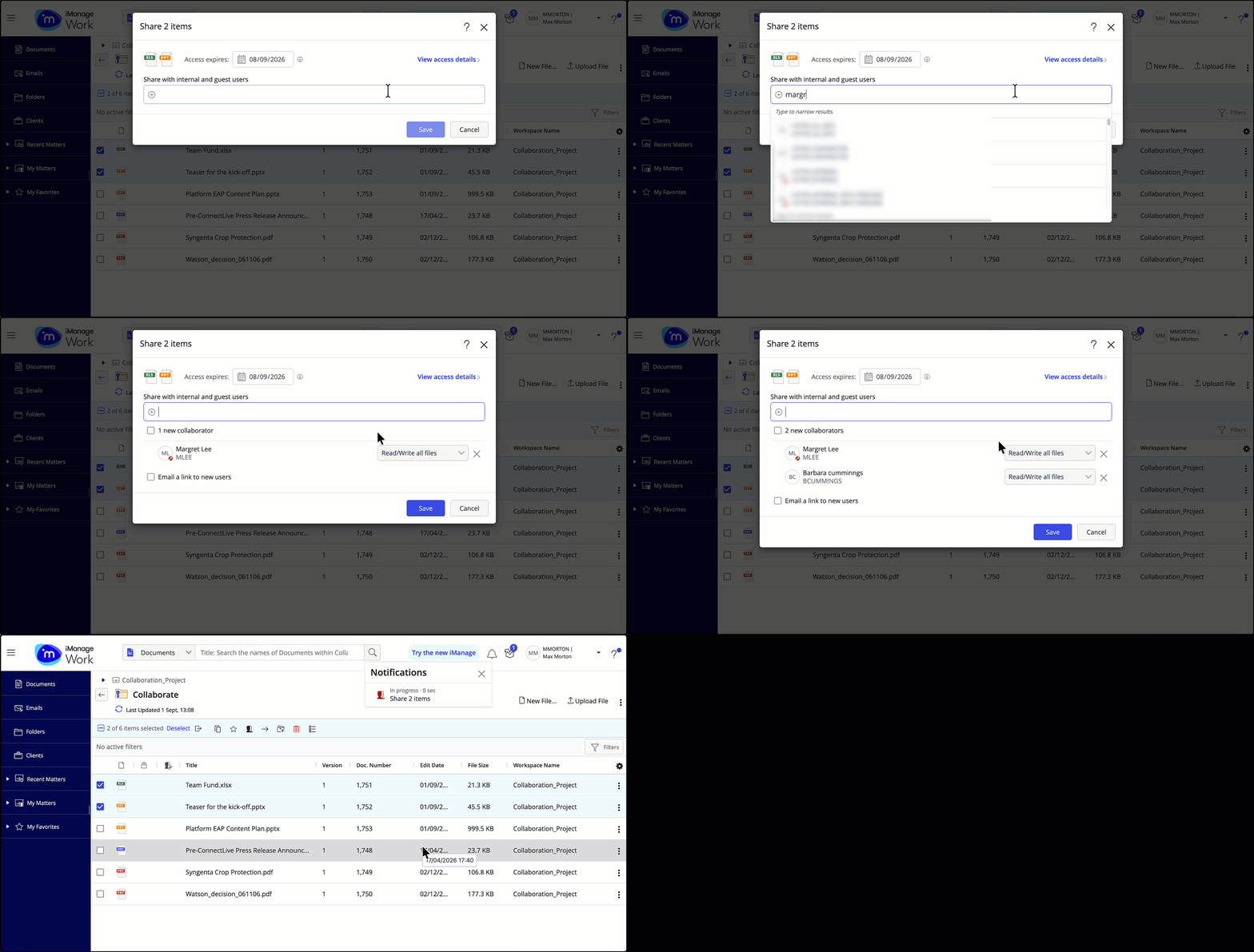
NOTE:
- When entering individuals to share the document(s) with, you can also view the existing security of the document set in iManage Work to check if any individuals you’re inviting already have access to or are explicitly locked out of this document.
- A user can be blocked from receiving a link for the following reasons:
- In the iManage Security panel of the document, a user is listed as having NO ACCESS.
- iManage Security Policy Manager access (if configured) is set to exclude the user.
- The user has been blocked by an administrator in the Collaboration section in Control Center.
Set the access control level for each collaborator as explained below:
Read: Allows the collaborator to:
View the document in Microsoft Word, Excel, or PowerPoint for web, if the document type is as listed above.
Download the document for all document types.
Read/write: Allows the collaborator to:
View the document in Microsoft Word, Excel, or PowerPoint for web, if the document type is as listed above.
Co-author the document using the Microsoft Word, Excel or PowerPoint for Web, or Microsoft Word, Excel, or PowerPoint Desktop application.
This requires the recipient to have a valid business Microsoft 365 license and a build of the Microsoft 365 desktop application installed on the device on which they're opening the link.Download the document for all document types.
(Optional):
For the invited collaborators, you can also:
Send an email when sharing documents using Collaboration Links.
Include additional text that'll be displayed in the body of the email they receive along with the link.
These options aren't available if you choose to deselect the Email a link to new users but, you can still copy the link and paste it into another application.Figure: Option to send email and message when sharing documents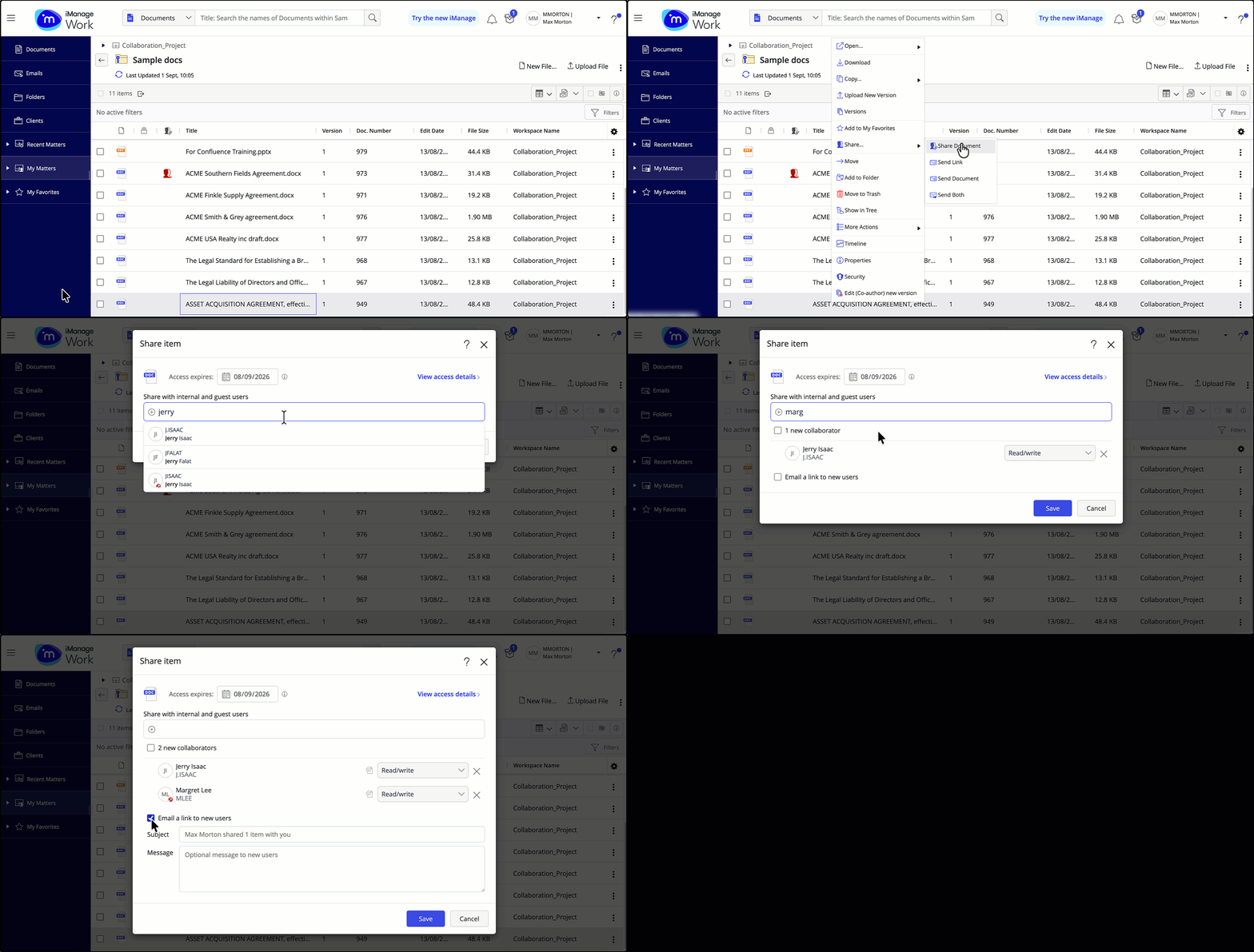
Select Save. Selecting the bell (:bell_icon: ) icon displays the status of collaboration link creation in the Notifications panel. If there’s an issue with any of the users invited to collaborate on the document(s), you'll be informed of this.
Selecting the notification panel opens the Report: Sharing updates dialog, where you can:
Download a .csv activity report.
Copy one or more shared links.
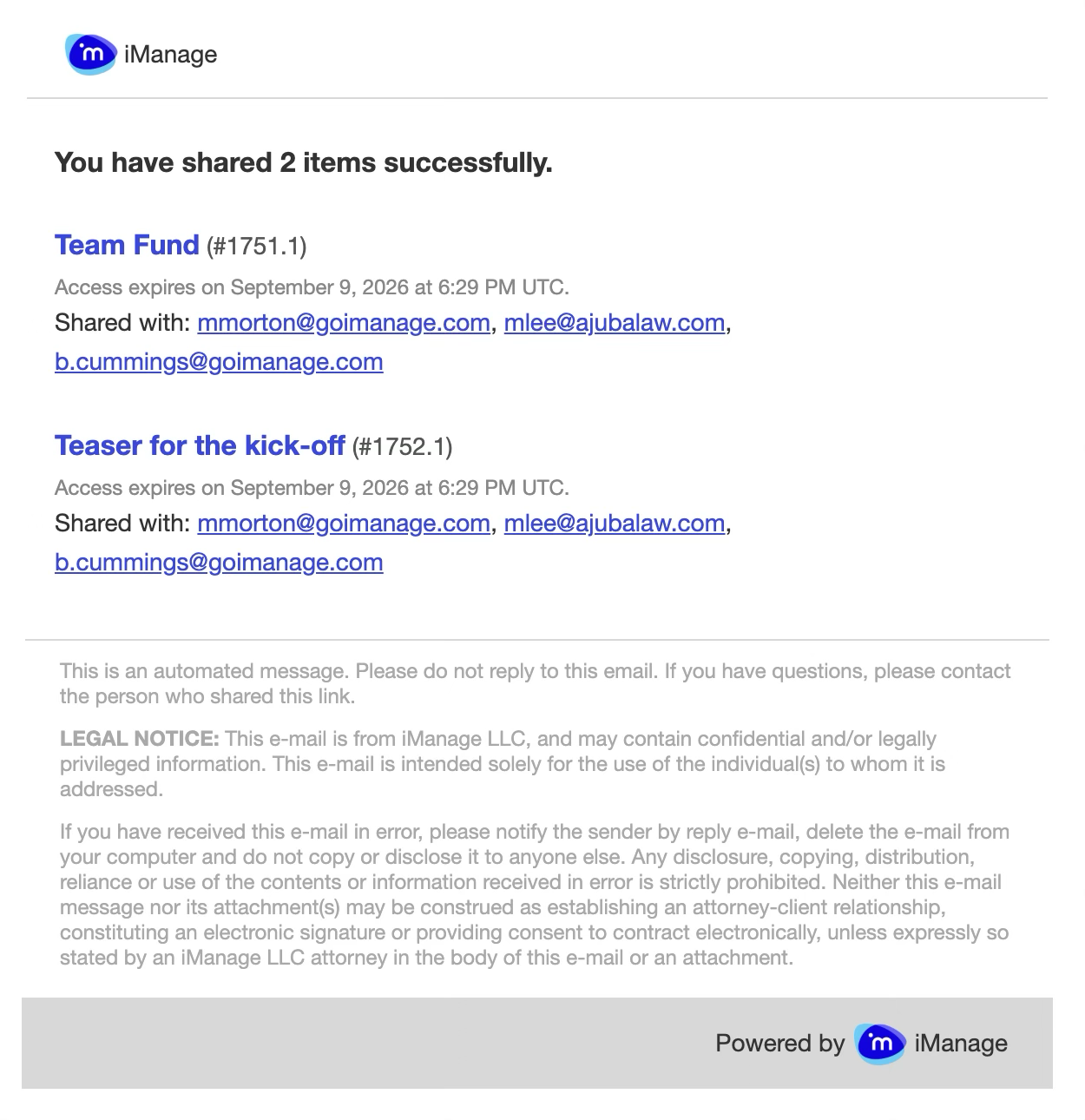
Figure: Report - Sharing updates dialog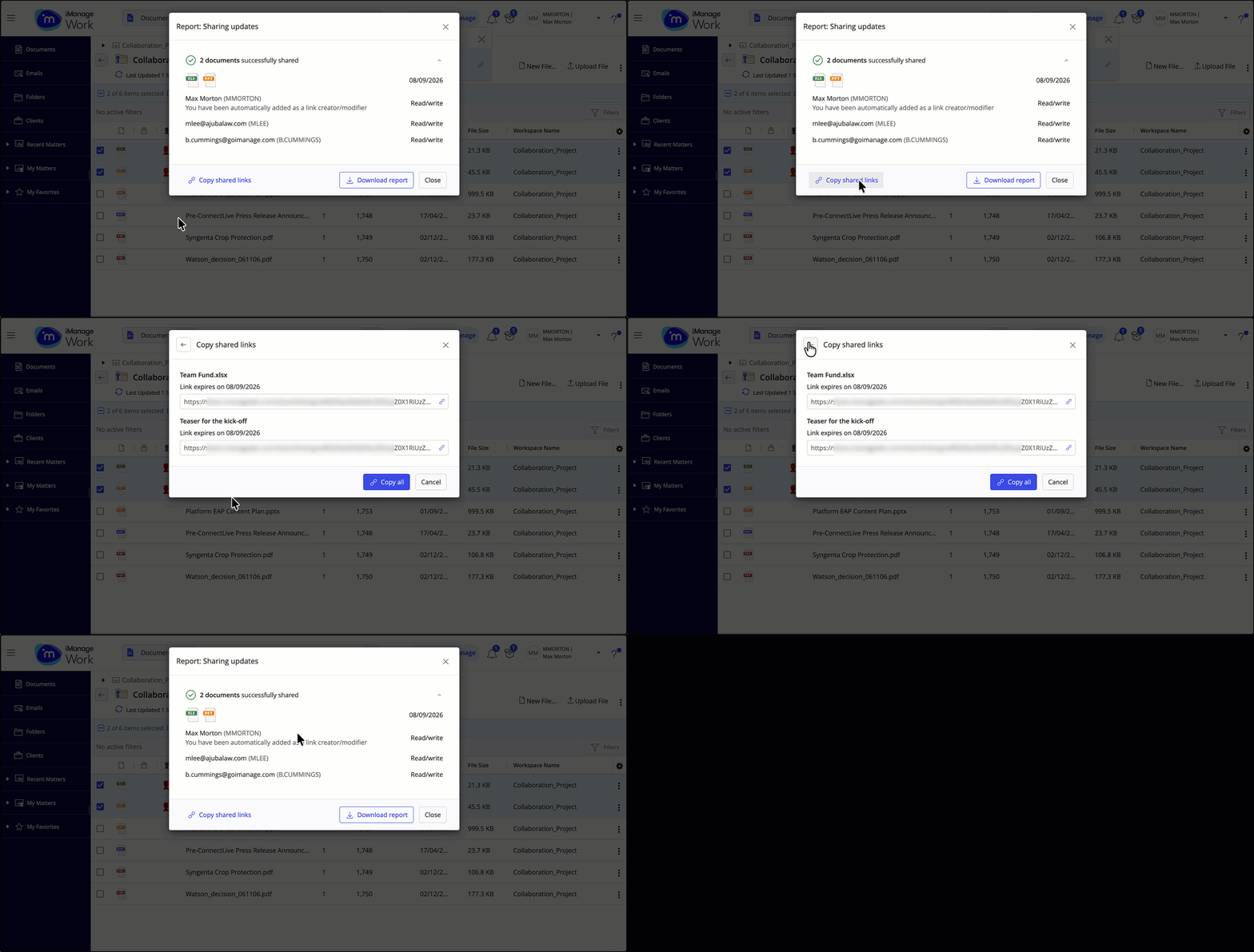
Emails sent after sharing a document
The collaborators receive an email with the collaboration link to the document. No document types icons are displayed in the email. For more information, refer to Receiving a link as an invited collaborator.
As the link creator/editor, you’ll receive an email from [email protected], with the following metadata:
File name
Document and version number
Collaboration link to the document
Updated expiration date in UTC format
iManage terms and conditions