If you’re using iManage Work Next Generation Co-authoring with Microsoft 365 applications for iOS, then the Microsoft 365 applications treat the data as personal and not as owned by the organization. This can lead to data leaks. So, administrators should configure Microsoft Intune to ensure the documents are safe.
This section contains the following:
Enabling Microsoft Intune in iManage Control Center
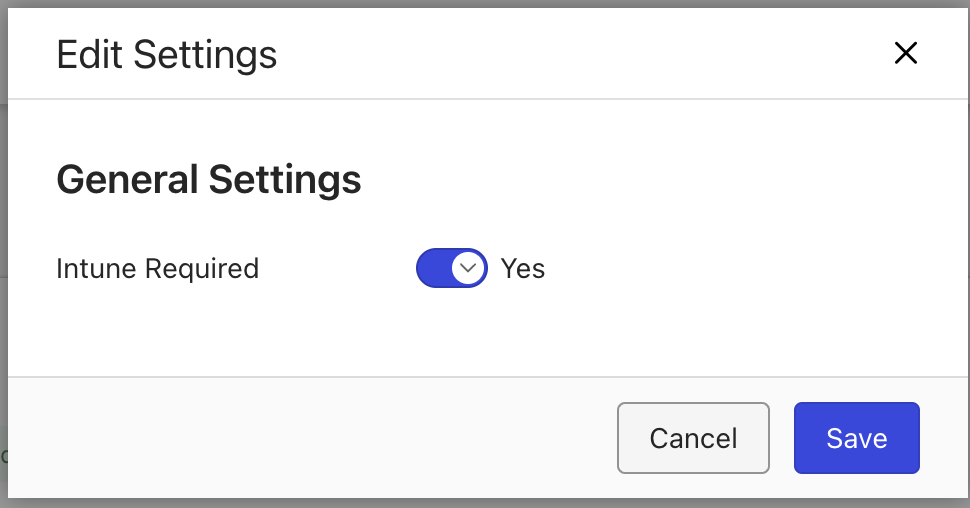
Administrators can sign into iManage Control Center and add the Microsoft 365 for mobile application. If Microsoft Intune is available, then they can set the Intune Required option to Yes by sliding the slider to the right.
After adding the Microsoft 365 for mobile application, then iManage Work Next Co-authoring is available on Work 10 Mobility app and iManage Work (iOS and Android).
If you're using any MDM instead of Microsoft Intune, we still recommend setting Microsoft MAM for Microsoft 365 applications when using co-authoring.
Using iManage Work Next Generation Co-authoring with Intune Required enabled
If the user is a virtual user or a non-Microsoft Single Sign-on (SSO) user and if the sign in isn't done using an entra account, then the user has to sign-in into the application twice, first time for single sign-on and the second time for Mcrosoft Intune protection setup.
If the sign-in is done using an Entra user account, the user has to sign in to the application just once.
After the sign-in is complete, the following user permission acceptance screen (one time only) opens and if the user selects Accept, they can continue working with iManage Work Next Generation Co-authoring. If user selects Cancel, then they won't be able to sign in to the application because Microsoft Intune is required.
Figure: Permissions requested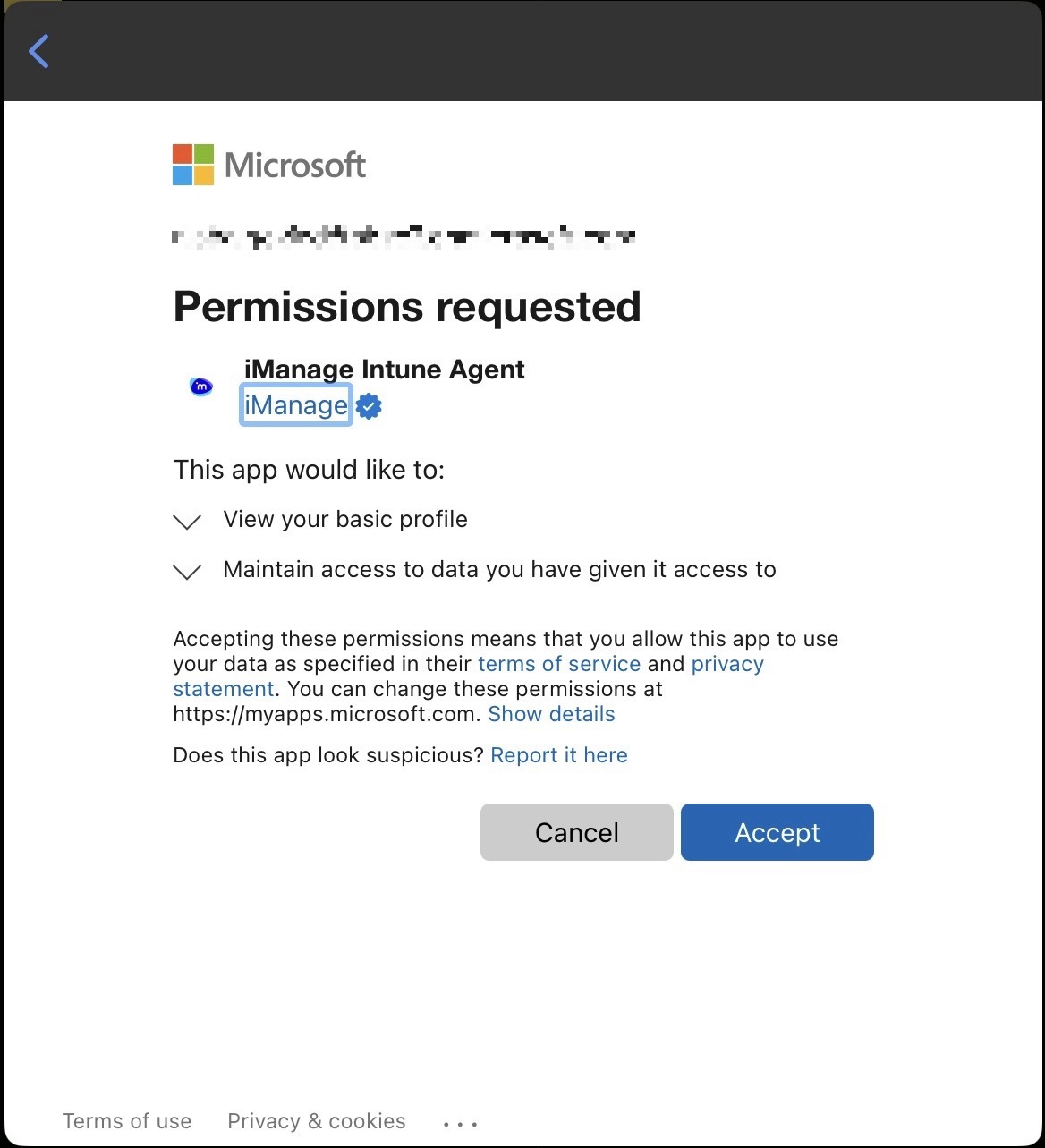
Administrators can hide the above screen by granting permission using Entra by doing the following:
Browse to https://entra.microsoft.com/ > Applications > Enterprise Applications > All Applications.
Select iManage Intune Agent.
Browse to Security > Permissions.
Select Grant Admin Consent. A dialog appears that provides grant admin consent to the application. After this is done, users no longer have to grant individual consent.
Administrators can do the following to protect the data from data leaks by doing the following:
Visit intune.microsoft.com and browse to Apps > Protection and open protection policies for Microsoft applications or create one, as required.
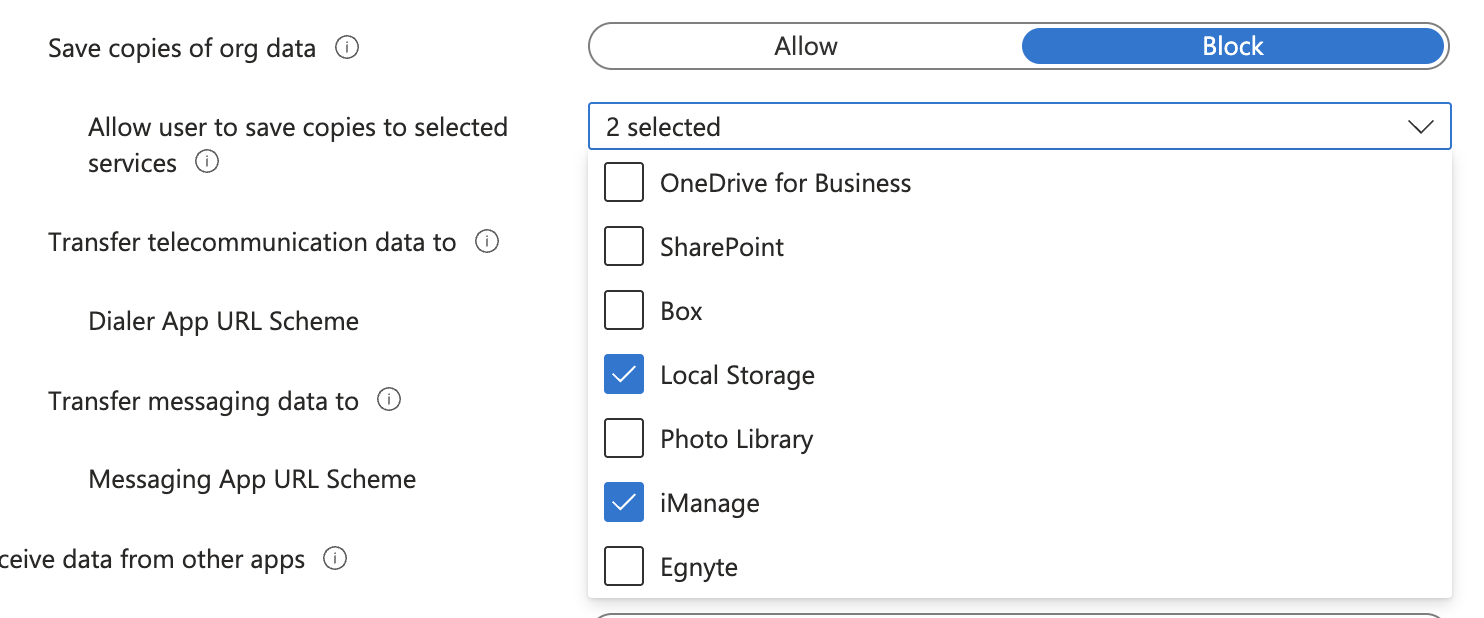
Browse to Save copies of org data and then set it to Block. Under Allow user to save copies to selected services, select iManage. This ensures that iManage service location an Intune protect spot on the device and the ensures that data is protected.
Using iManage Work Next Generation Co-authoring with Intune Required disabled
If Microsoft Intune isn't enabled in iManage Control Center, users can continue to access their documents for co-authoring on mobile and can open the file using Microsoft 365 applications.