Apps page details
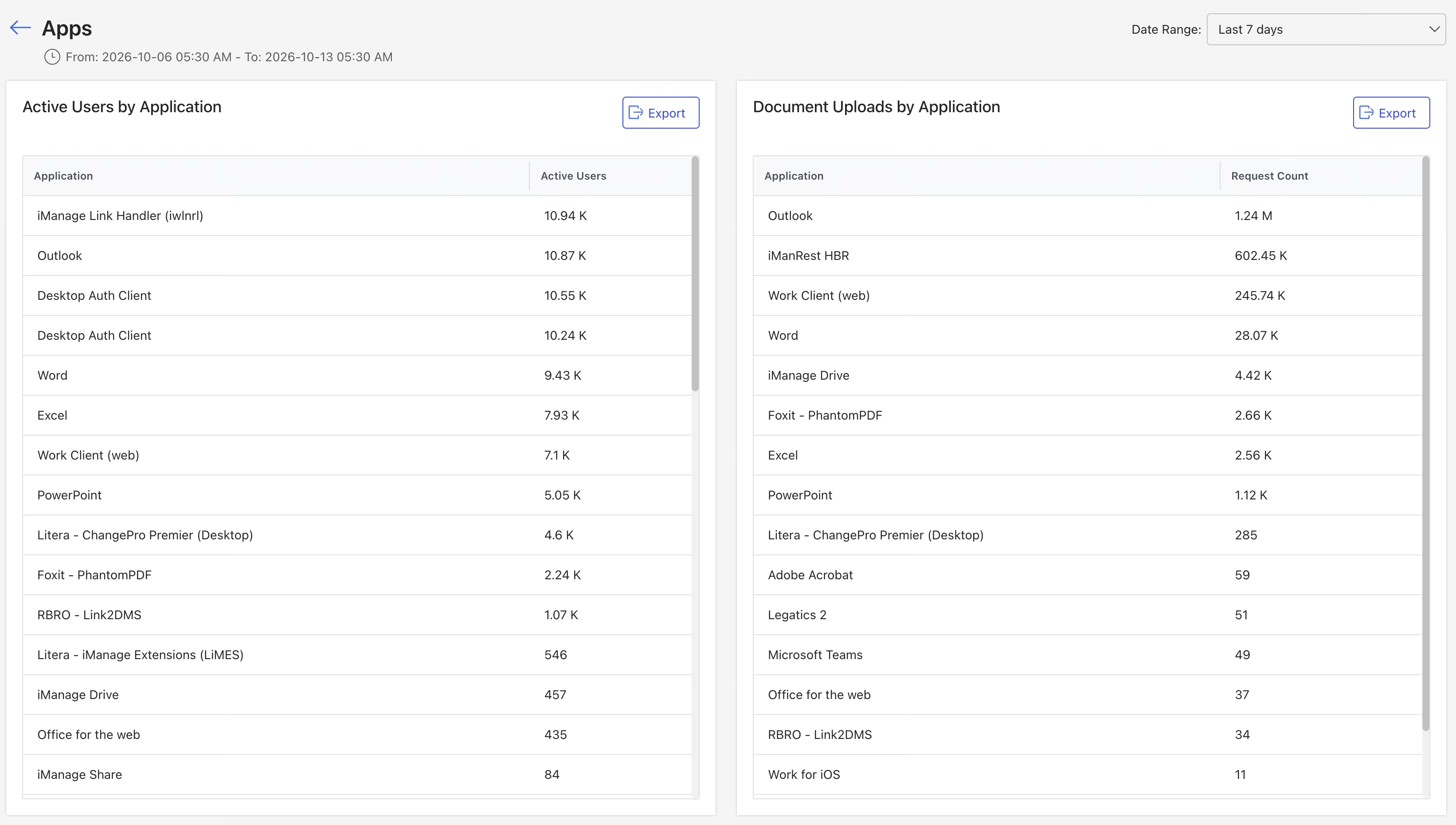
The Apps page provides the following reports related to your applications:
An example of the Apps page is shown in the figure below.
NOTES:
This page shows the date range when the data was collected.
By default, the Apps page reports display data about applications from the last seven days.
Report data is available starting from August 3, 2025.
The values shown in the reports reflect the number of each application in the last reporting interval and are based on a point-in-time snapshot taken within the interval. On the Apps page, these snapshots occur daily.
To change the reporting period, refer to Apps page actions.
Apps page actions
On the Apps page, you can adjust the data reporting period. For more information on this action, refer to the section below.
Adjust the data reporting period
By default, the Apps page reports display data about applications from the last week. To change the data reporting period, select from the following options in the Date Range drop-down list:
Yesterday
Last 7 days (default)
Last 30 days
Active Users by Application report details
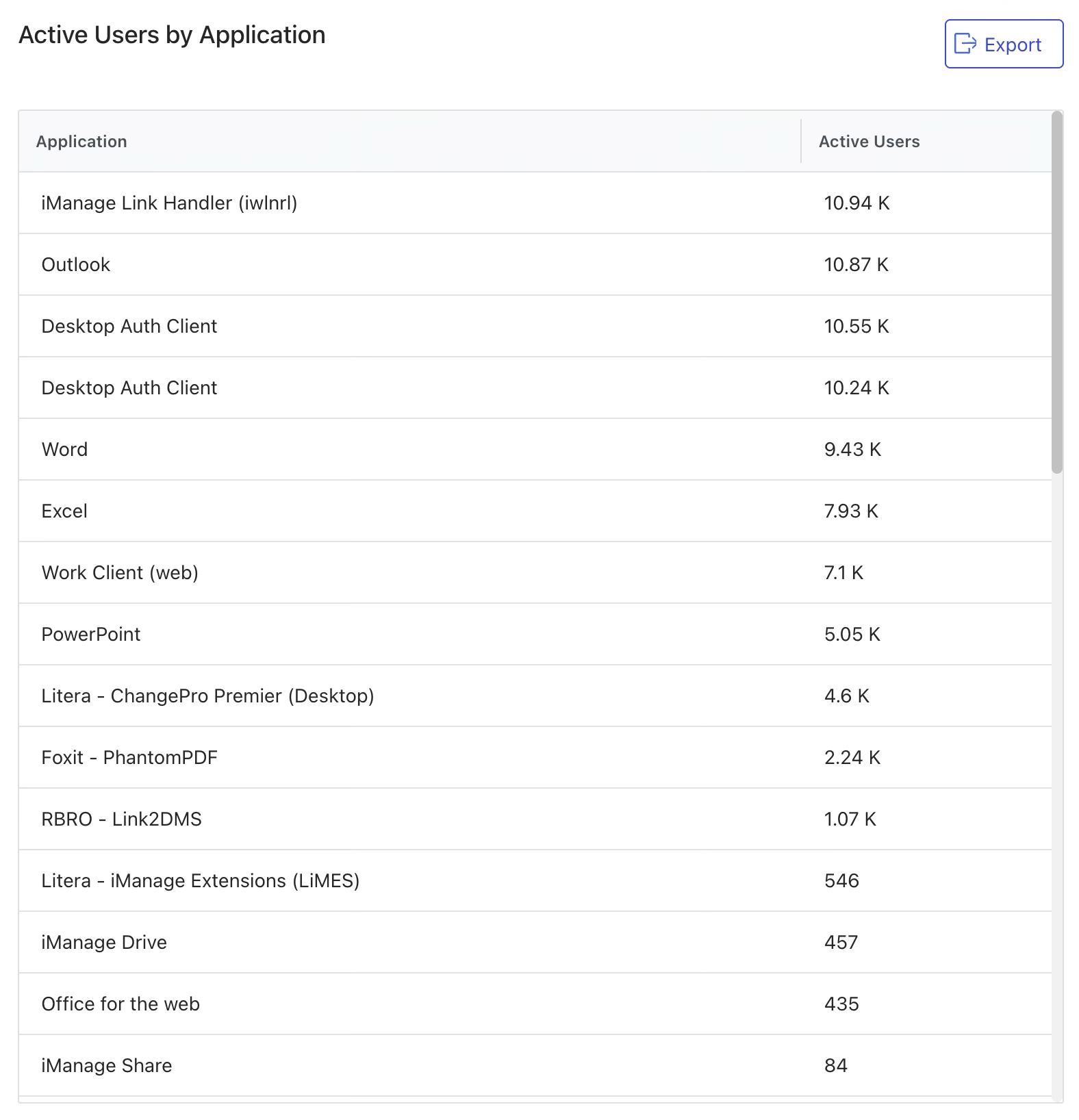
The Active Users by Application tile displays a list showing the number of active users for each application over the specified data reporting period.
An example of the Active Users by Application tile is shown in the figure below.
Active Users by Application tile actions
In the Active Users by Application tile, you can download user application details in CSV format. For more information on this action, refer to the section below.
Download user application details
To download user application details in CSV format, select the Export button in the Active Users by Application tile.
Document Uploads by Application report details
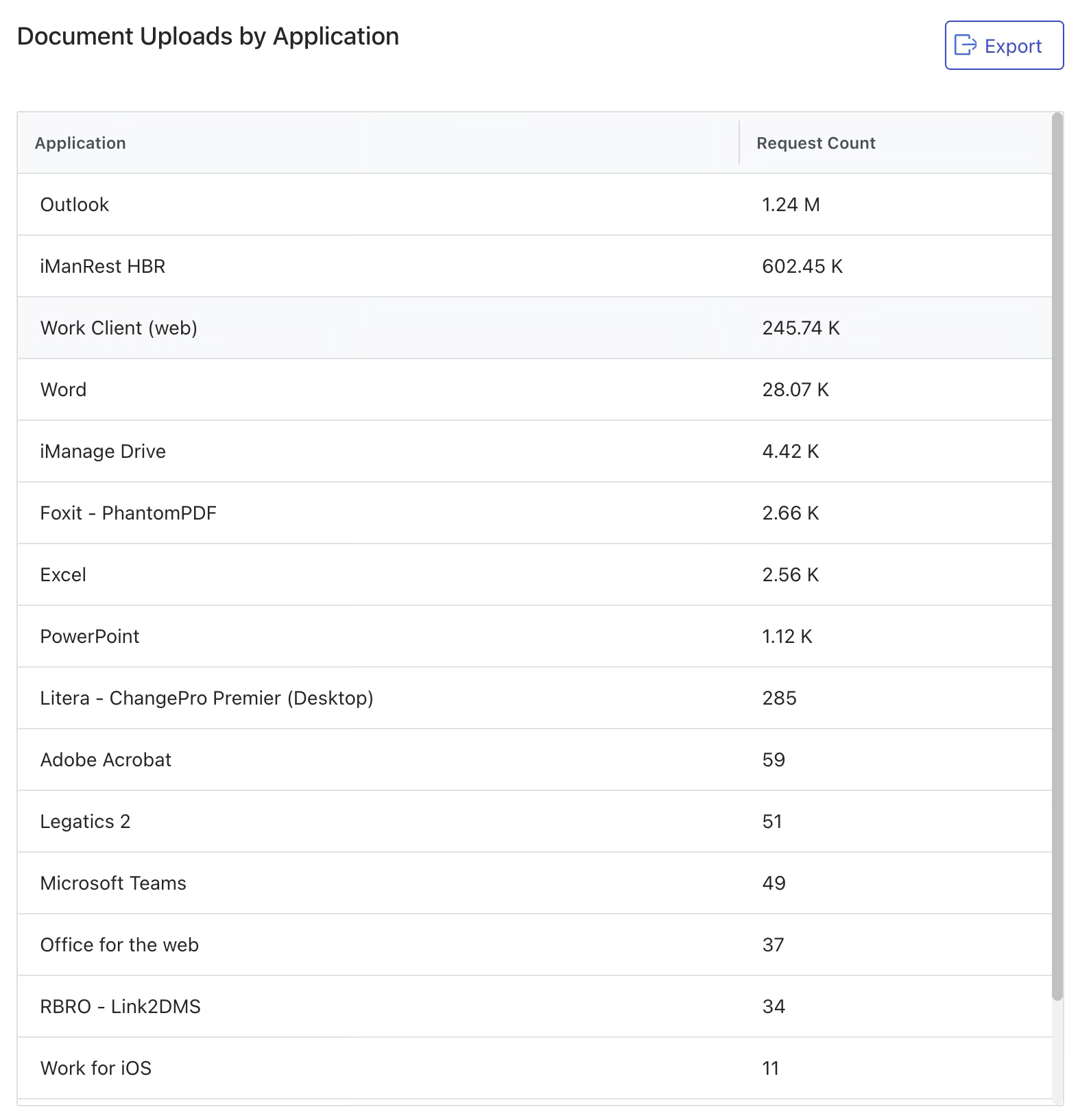
The Document Uploads by Application tile displays a list showing the number of document uploads for each application over the specified data reporting period.
An example of the Document Uploads by Application tile is shown in the figure below.
Document Uploads by Application tile actions
In the Document Uploads by Application tile, you can download document application details in CSV format. For more information on this action, refer to the section below.
Download document application details
To download document application details in CSV format, select the Export button in the Document Uploads by Application tile.