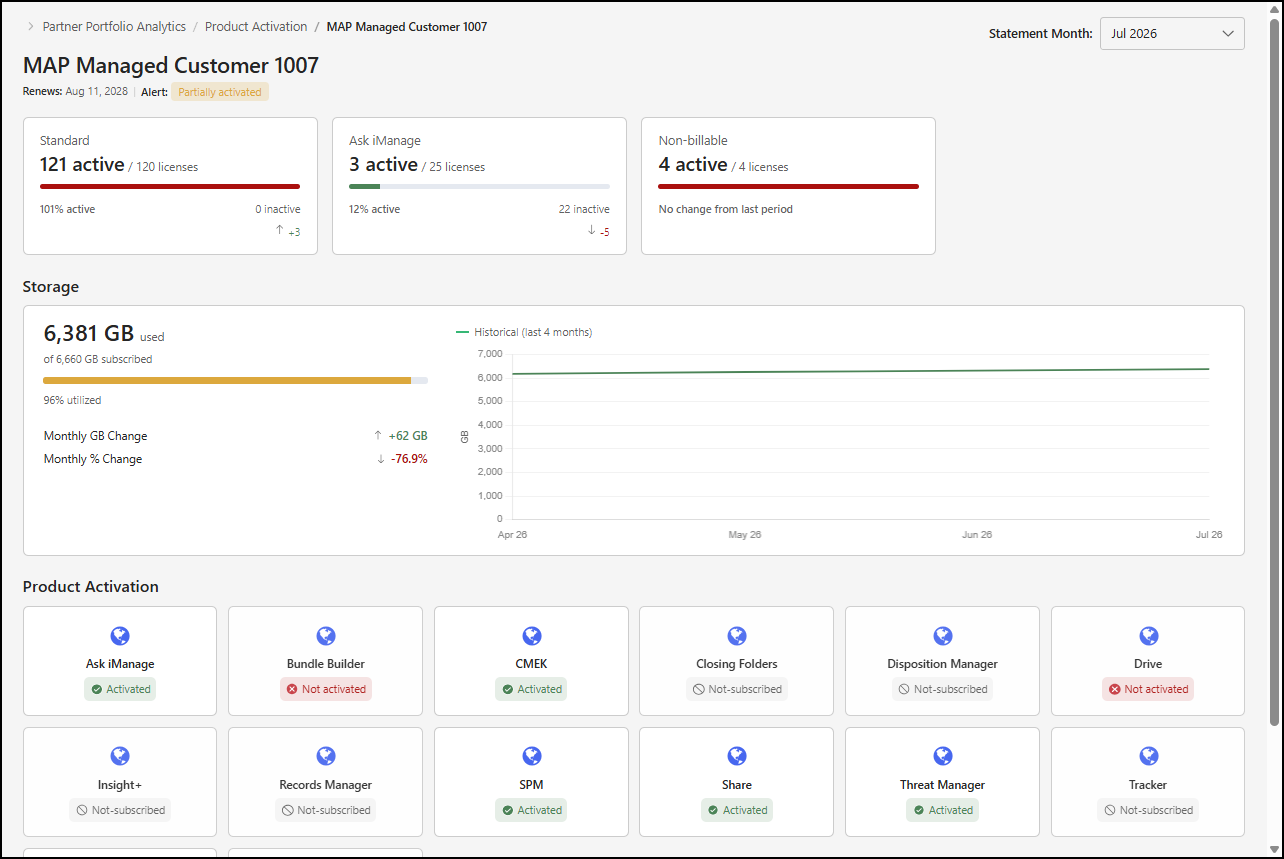
The detailed customer summary page displays storage metrics for a selected customer, along with sections for user licensing, storage consumption, and product activation. An example of this page is shown in the following figure.
This section includes the following topics:
Detailed customer summary page actions
The detailed customer summary page includes a Statement Month drop-down list, which lets you select the month for which you want to view customer details. By default, the most recent available month is selected.
To view data for a different month, select the Statement Month drop-down list and choose a month.
NOTES:
Metrics on the detailed customer summary page are based on data about the customer for the billing period associated with the month selected in the Statement Month drop-down list.
Data is available at the end of each billing cycle and is posted between the twenty-first and twenty-fifth of the month.
Detailed customer summary page details
The detailed customer summary page includes the following information about the customer:
Customer name: The name of the customer.
Renews: The iManage subscription renewal date for the customer.
Alert: Displays a message based on the percentage of products the customer has activated:
Most not activated
Partially activated
Minor gaps
Fully activated
The detailed customer summary page also includes the following sections:
User Licensing
The User Licensing section of the detailed customer summary page displays tiles showing licensed and active user details for the following user types:
Standard: Users with full access to iManage Work, including features such as Search, Email Management, Work 10 Web access, document download, and all core capabilities of iManage Work.
Ask iManage: Users with access to AI-powered search and insights, allowing them to query documents using natural language and receive intelligent responses. A user is considered active if they performed any actions in Ask iManage during the selected period.
Non-billable: Users who are assigned to a global non-billable group and represent system accounts that support iManage Work subsystems, such as accounts used for testing, training, help desk support, migrations, and third-party implementation or managed services. To learn about non-billable group assignment, refer to the Procedure for marking users as non-billable for iManage Cloud Help Center article.
NOTE: The Non-billable tile doesn’t display if there aren’t any users of that type.
An example of the User Licensing section is shown in the following figure.

Each tile in this section includes the following details:
x active / y licenses: This indicates the number of users who were active (x) and the total number of user licenses (y).
Bar chart: This shows a segmented bar that displays the following details as applicable:
Active: The number of users who were active.
Inactive: The total number of user licenses.
x% active: This indicates the percentage of users who were active.
x inactive: This indicates the number of users who were inactive.
Active users change from last month:
[+-]x: This shows the increase (+) or decrease (-) in the number of active users (x) in the billing period for the selected month compared to the previous billing period.
Storage
The Storage section of the detailed customer summary page provides metrics about your iManage Work storage for the selected billing period. An example of this section is shown in the following figure.
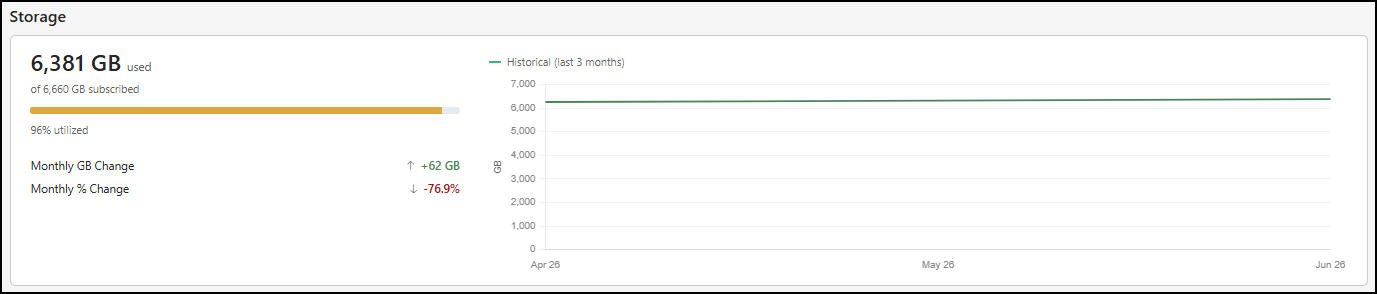
The following details are provided in the Storage section:
x GB used: The amount of storage used by the customer (x), measured in gigabytes (GB).
of x GB subscribed: The total amount of licensed storage available to the customer, measured in gigabytes (GB).
Bar chart: A segmented bar that displays the following details as applicable:
Used: The amount of storage used by the customer for the selected billing period.
Total: The total amount of licensed storage available to the customer for the selected billing period.
x% utilized: The percentage of storage used by the customer for the selected billing period.
Storage change from last month: This section includes comparison messages that show how the storage (Gigabytes (GB)) and percent utilization (Percentage (%)) metrics have changed from the previous billing period:
No change from last period: The metric didn’t change from the billing period for the month before the selected month.
[+-]x vs last month: The metric increased or decreased in the billing period for the selected month compared to the previous billing period, where x is one of the following:
An integer for the Gigabytes (GB) metric.
A percentage for the Percentage (%) metric.
Historical and projected storage metrics: The following metrics are shown in a line chart:
Historical: This section of the line chart shows the amount of storage used over the six-month period before the selected billing period. This section of the chart is shown as a solid green line.
Projected usage: This section of the line chart shows the amount of storage projected to be used over the six-month period after the selected billing period. This section of the chart as shown as a dashed orange line.
Overage date: This point on the line chart shows the date when the amount of storage used exceeded the amount of licensed storage available. The date is shown as a red dot on the chart.
Product Activation
The Product Activation section of the detailed customer summary page includes tiles for the following iManage products:
Ask iManage
Bundle Builder
Closing Folders
CMEK
Disposition Manager
Drive
Insight+
Records Manager
Share
SPM
Threat Manager
Tracker
Work Core
Work E-Signature
An example of the Product Activation section is shown in the following figure.
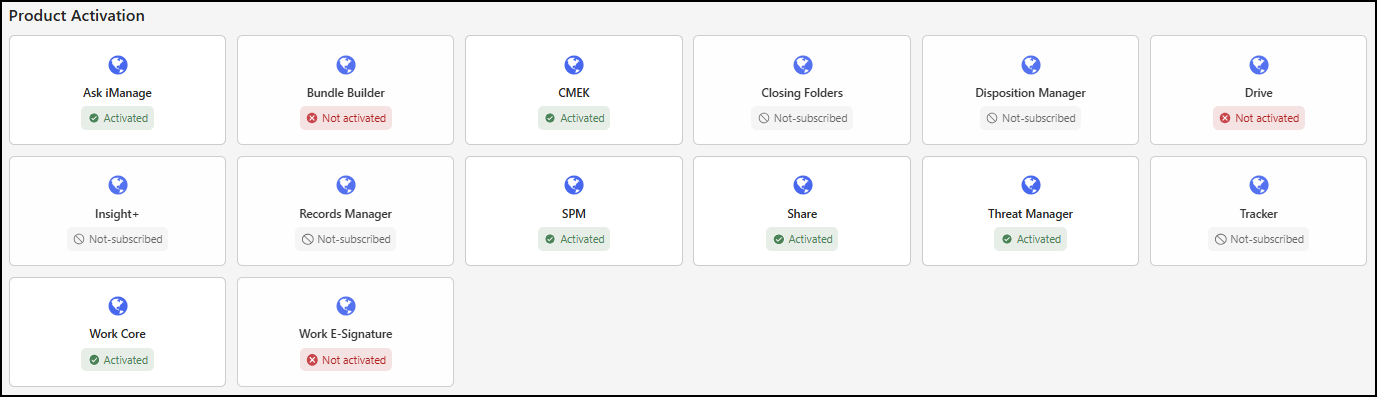
Each tile in this section displays one of the following messages:
Activated: The product is activated in the customer’s environment.
Not activated: The customer’s subscription includes the product, but it isn’t activated in their environment.
Not subscribed: The customer doesn’t have a subscription for the product.