The high-level user licensing customer summary pane displays tiles showing licensed and active user details for the following user types:
Standard: Users with full access to iManage Work, including features like Search, Email Management, Work 10 Web access, document download, and all core capabilities of iManage Work.
Ask iManage: Users with access to AI-powered search and insights, allowing them to query documents using natural language and receive intelligent responses. A user is considered active if they performed any actions in Ask iManage during the selected period.
An example of this pane is shown in the following figure.
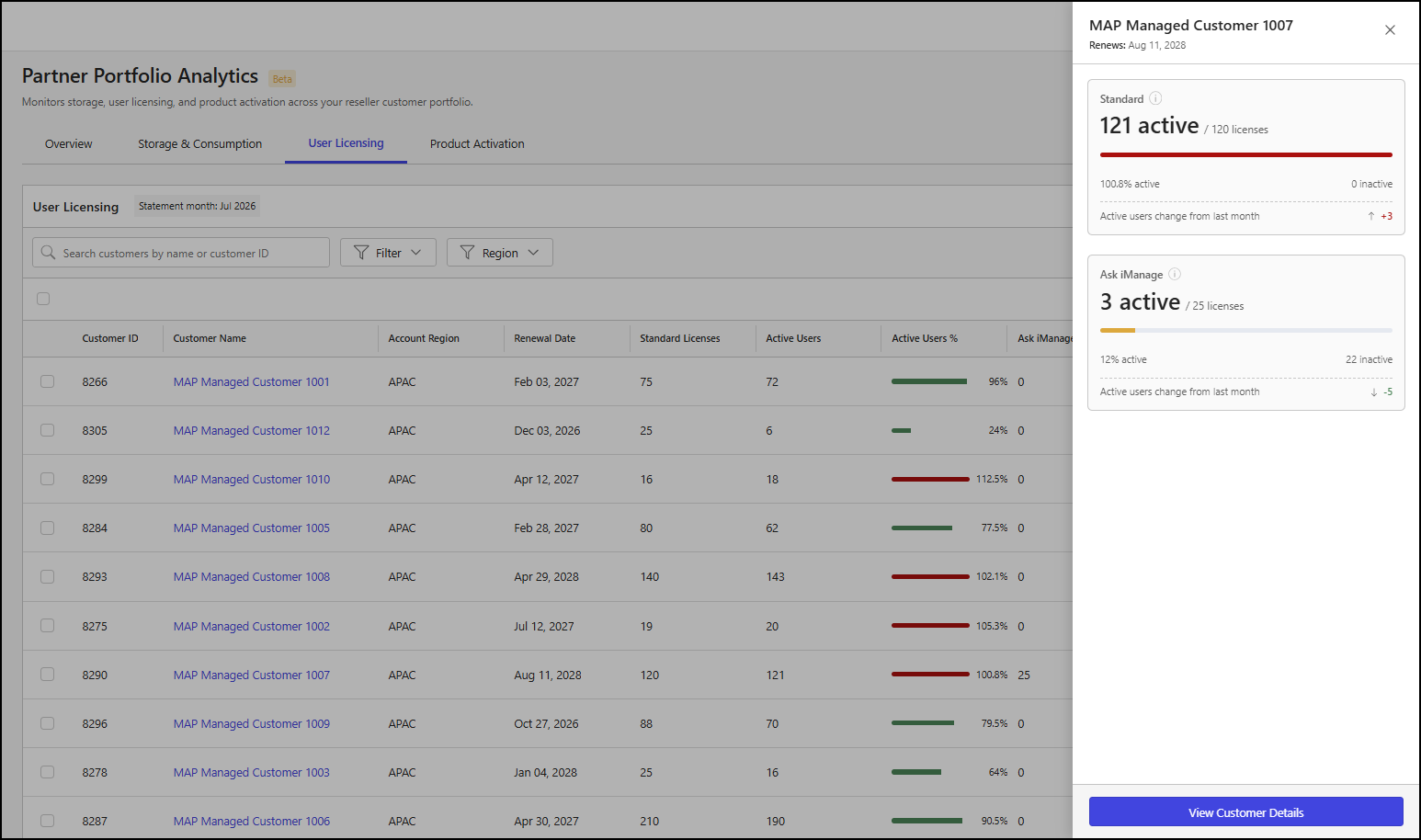
The customer pane includes the following details:
Customer Name: The name of the customer.
Renews: The iManage subscription renewal date for the customer.
Standard users tile: This tile displays metrics for Standard users. For more information about the metrics included in this tile, refer to Users tile metrics.
Ask iManage users tile: This tile displays metrics for Ask iManage users. For more information about the metrics included in this tile, refer to Users tile metrics.
Users tile metrics
Each tile in the high-level user licensing customer summary pane includes the following details:
x active / y licenses: This indicates the number of users who were active (x) and the total number of user licenses (y).
Bar chart: This shows a segmented bar that displays the following details as applicable:
Active: The number of users who were active.
Inactive: The total number of user licenses.
x% active: This indicates the percentage of users who were active.
x inactive: This indicates the number of users who were inactive.
Active users change from last month:
[+-]x: This shows the increase (+) or decrease (-) in the number of active users (x) in the billing period for the selected month compared to the previous billing period.
NOTE: The message Not subscribed is shown in the Ask iManage tile if the customer doesn’t have an Ask iManage subscription.
View a detailed customer summary
To view more detailed information about a customer from the high-level user licensing customer summary pane, select View Customer Details. This will open a page with additional details about the selected customer. For more information, refer to Detailed customer summary.