The User Licensing tab on the Partner Portfolio Analytics page shows user licensing metrics across your customer portfolio. Use this tab to understand how licenses are allocated and used, review customer licensing patterns, and identify opportunities to align licensing with current usage, customer growth, or changing business needs. This information can help support renewal planning and licensing discussions.
NOTE: In this context, customer portfolio refers to your reseller-contracted customers who were live on cloudimanage.com during the selected billing period.
Accessing the User Licensing tab
To view the User Licensing tab on the Partner Portfolio Analytics page in iManage Admin Portal:
Go to https://cloudimanage.com/admin and sign in with your iManage credentials.
Browse to Partner Portfolio > Partner Portfolio Analytics and then select the User Licensing tab.
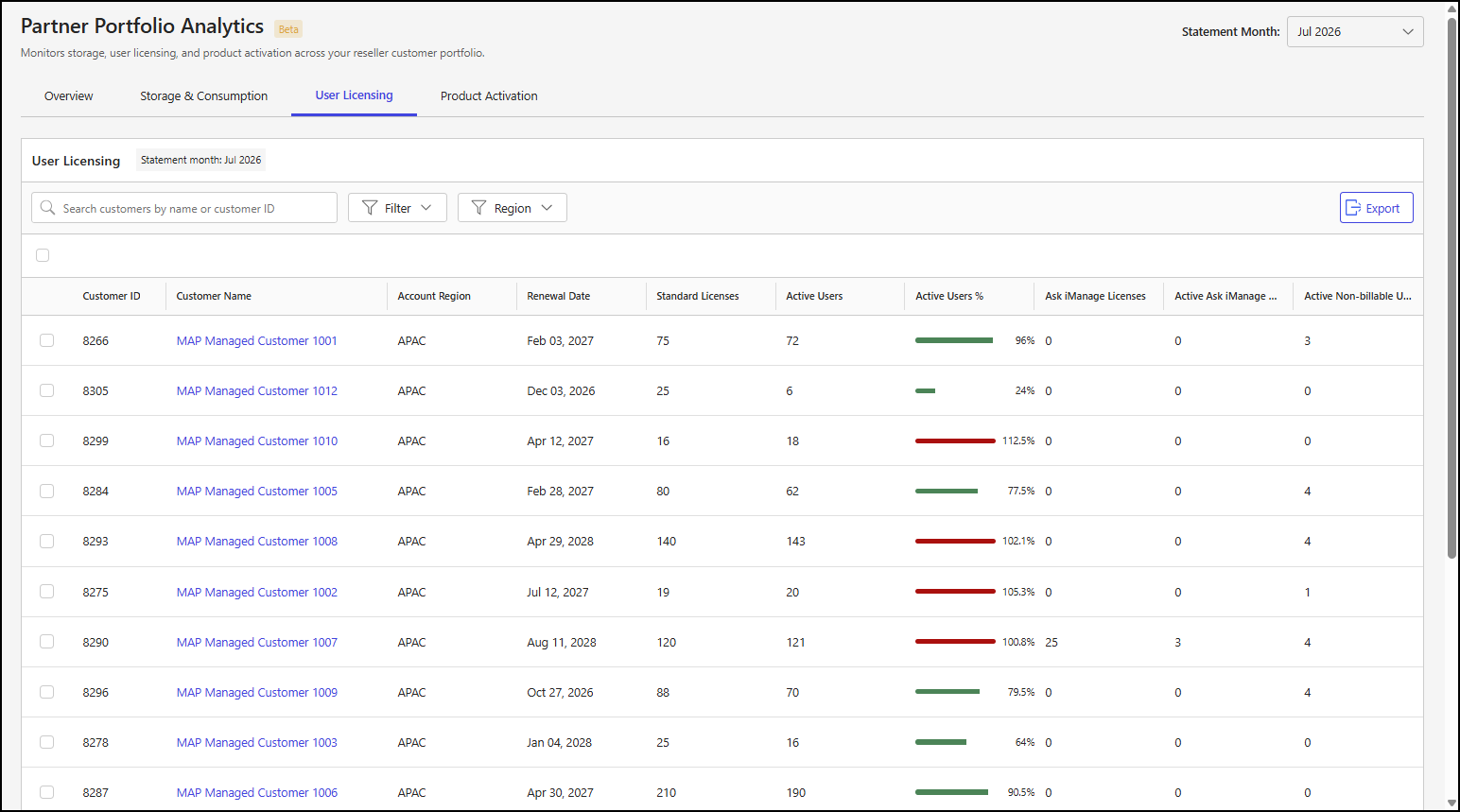
The following figure shows an example of the User Licensing tab.
User Licensing tab actions
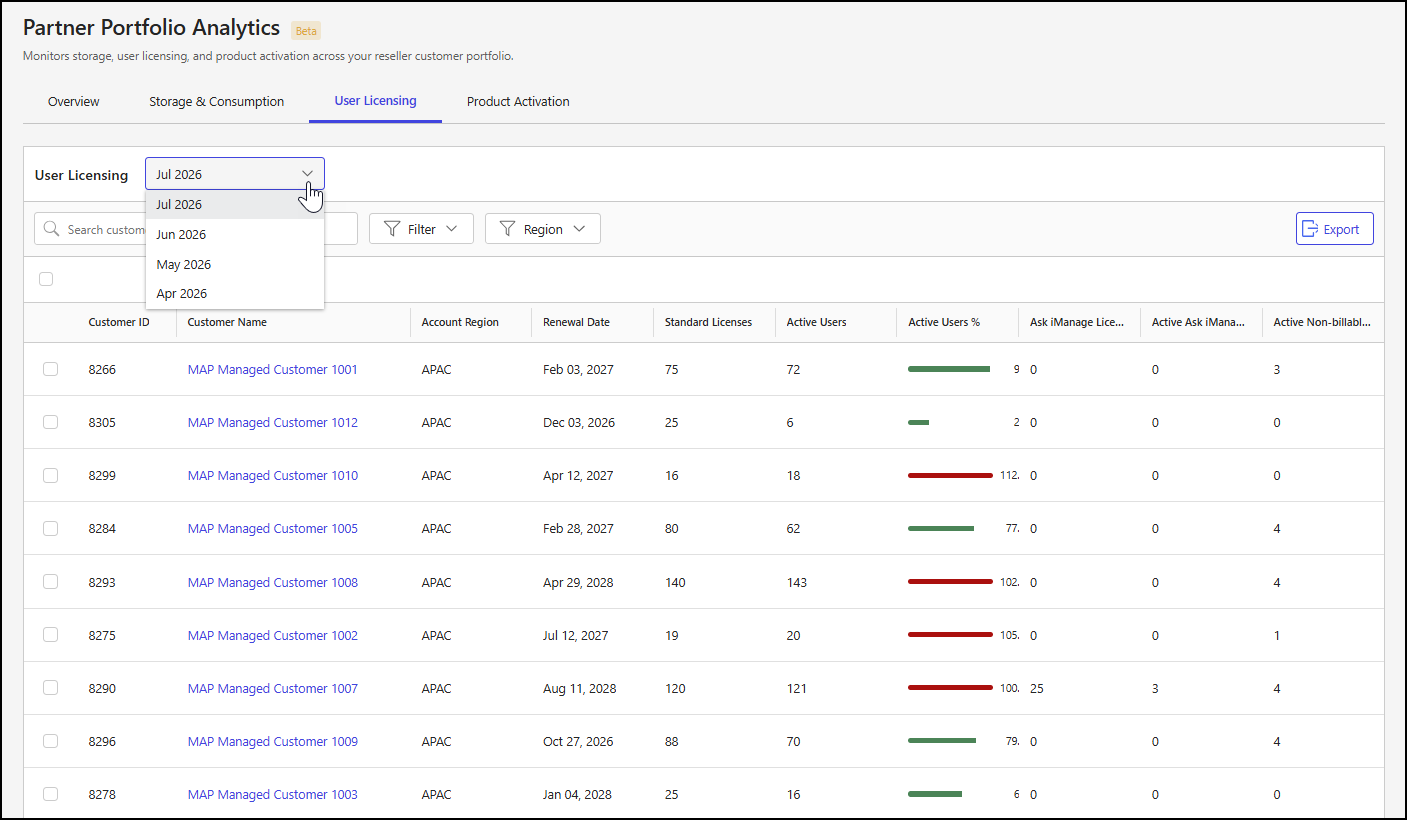
The User Licensing tab includes a statement month drop-down list, which lets you select the month for which you want to view user licensing details for your customer portfolio. By default, the most recent available month is selected.
To view data for a different month, select the statement month drop-down list and choose a month.
NOTES:
Metrics on the User Licensing tab are based on data from your customer portfolio for the billing period associated with the month selected in the statement month drop-down list.
Data is available at the end of each billing cycle and is posted between the twenty-first and twenty-fifth of the month.
User Licensing by Customer section
The User Licensing by Customer section lists all reseller-contracted customers in your portfolio who are live on cloudimanage.com. The table includes the following columns:
Customer ID: The unique identifier for the customer.
Customer Name: The name of the customer.
Account Region: The geographic region assigned to the customer's account.
Renewal Date: The iManage subscription renewal date for the customer.
Standard Licenses: The number of licenses that provide full access to iManage Work, including features like Search, Email Management, Work 10 Web access, document download, and all core iManage Work capabilities.
Active Users: The number of standard licensed users who signed in to iManage Work during the selected billing month.
Active Users %: The percentage of standard licensed users who were active during the selected billing month. This value is displayed as both a percentage and a segmented bar chart.
Bar chart: A segmented bar within the Active Users column that displays the following details as applicable:
Active: The number of active standard licensed users.
Total: The total number of standard licensed users for the customer.
x%: The percentage of standard licensed users (x) who were active.
NOTE: The bar chart and active user percentage use the following colors to indicate utilization:
Green: User utilization is less than 100%.
Red: User utilization is greater than or equal to 100%.
Ask iManage Licenses: The number of licenses that provide access to AI-powered search and insights, allowing users to query documents using natural language and receive intelligent responses.
Active Ask iManage Users: The number Ask iManage licensed users who performed any actions in Ask iManage during the selected billing month.
User Licensing by Customer section actions
In the User Licensing by Customer section, you can:
Search for customers by name or customer ID.
Filter the list by values in the Active Users % column.
Select one customer, multiple customers, or all customers.
Rearrange table columns.
Export customer details.
View a high-level summary of customer details.
View a detailed customer summary.
For more information about these actions, refer to the sections below.
Search for customers
To search for a customer in the User Licensing by Customer section, enter a search string in the Search customers by name or customer ID field.

Filter data output
You can filter the customer table based on values in the Active Users % and Account Region columns.
To filter the table by active user utilization, select an option from the Filter drop-down list.
Figure: Active Users filter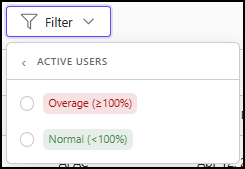
To filter the table by account region, select one or more options from the Region drop-down list.
Figure: Region filter options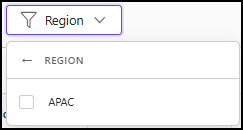
After you select one or more filter options, the customer table updates to show only customers that meet the filter criteria. The applied filter selection is also displayed, as shown in the following example.
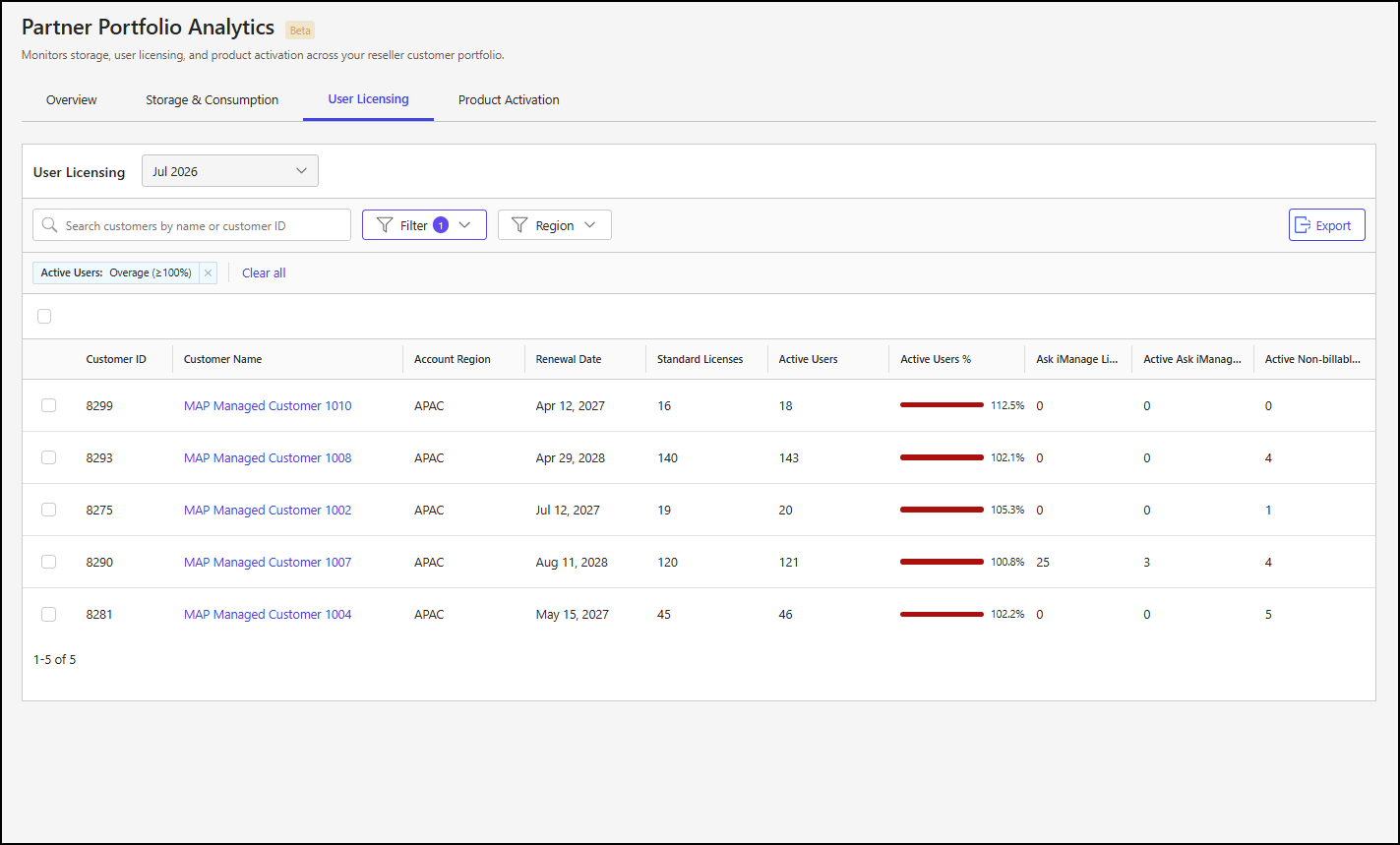
To remove filtering, do either of the following:
Select X next to the Active Users filter display.
Select Clear all.
Select customers
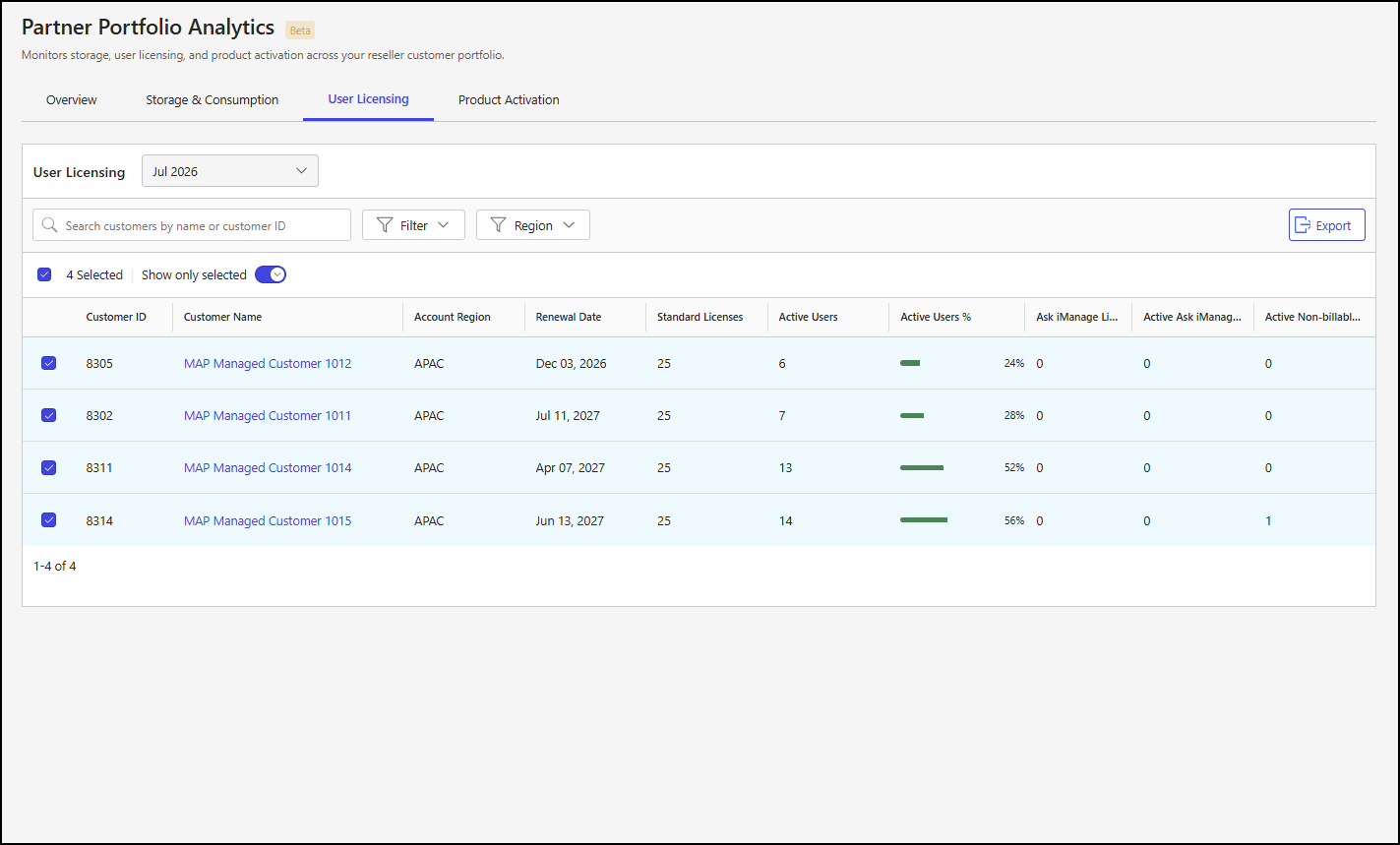
In the customer table, you can choose one, multiple, or all customers to perform actions on the selected customers.
To select all customers, select the check box above the customer table.
To select one or more customers, select the check box of each customer within the customer table.
When one or more customers are selected, the Show only selected toggle displays in the toolbar menu. Select this toggle to show only the selected customers.
The following figure shows an example of customer selections in the customer table.
Rearrange table columns
To rearrange a column in the customer table, select the column header, drag the column to the desired location, and then drop it into place.
Export customer details
To download user licensing details in CSV format, select the Export button in the User Licensing by Customer section.
NOTE: When you export data, any active search or filter selections are applied. As a result, the downloaded file includes only the customers displayed in the table at the time you select Export.
View a high-level customer summary
To view current storage details for a customer from the User Licensing tab, select a customer row in the customer table within the User Licensing by Customer section. This will open a panel showing the storage details for the selected customer. For more information, refer to High-level user licensing customer summary.
View a detailed customer summary
To view more detailed information about a customer from the User Licensing tab, select a customer name in the customer table within the User Licensing by Customer section. Selecting a customer name opens a page with additional details about the selected customer. For more information, refer to Detailed customer summary.