Depending on the option selected in the User access section, this section is labeled either Allowed users & groups or Permission overrides.
To add a user or group:
In the left pane in iManage Control Center, select Extensions > MCP Settings > Assign Access Policy.
In the Allowed users & groups or Permission overrides section, select the Search users & groups field and start entering a few characters (letters and/or numbers) of the name of the user or group you want to add.
Some users and groups are displayed by default when you select this field. You can select from the list that opens or enter text to search for those not listed.
Select the user or group from the results. iManage Control Center adds them to this section and assigns the Default Policy to them. The name and user ID is displayed for each user and group that’s added.
From the drop-down list next to the user or group, select the access policy to assign to them.
Repeat Steps 1–4 for each user or group you want to add.
NOTE: As the number of users and groups in this section increases, the option to scroll through the list becomes available.
Alternatively, assign the same policy to a set of users and groups:
Select the check boxes for the required users and groups.
Select Set access policy.
From the drop-down list that displays all the policies that are available (including the Default Policy), select the required option.
Select Save.
NOTE: Users and groups added or removed here are automatically reflected in the iManage MCP Service application. If a user or group is added directly in the iManage MCP Service application, they're automatically assigned the Default Policy. To assign a different policy to them, add them here and select the required policy from the drop-down list.
For more information, refer to Adding the iManage MCP application in iManage Control Center.
To remove a user or group:
Select the remove
 icon next to the user or group you want to remove. Repeat for each user or group you want to remove.
 Alternatively, select the check boxes for the required users and groups and then select the delete
 icon.Figure: Deleting multiple users and groups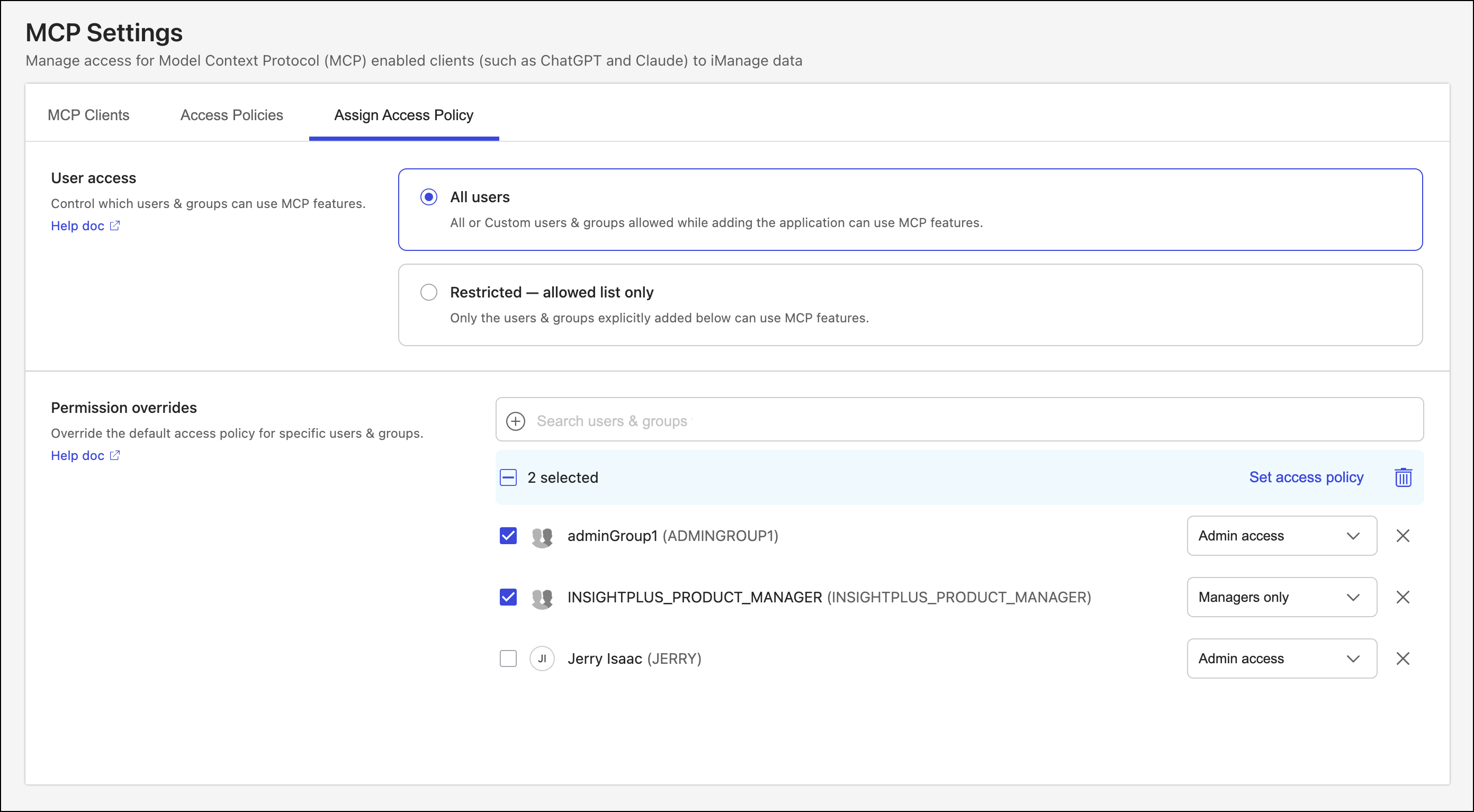
Select Save.
Security scenarios and considerations
User permissions override group permissions
Permission granted to individuals take precedence over those they get by virtue of being included in groups in which the permission set may differ.
Examples:
Jerry Isaac has the Admin access policy assigned to him. It grants him read, write, and delete access for iManage Work tools. He’s also part of adminGroup1 that's assigned the Default Policy which gives its members only read and write access to iManage Work tools.
Effective access: Read, write, and delete (what’s provided to him individually)
Let’s reverse the scenario: Jerry is assigned the Default Policy which provides him only read and write access to iManage Work tools. However, as part of the adminGroup1 to which the Admin access policy is assigned, he and other group members have read, write, and delete access for iManage Work tools.
Effective access: Read & Write (what’s provided to him individually)
Pessimistic security model for group permission overlap
If users are part of more than one group with differing permissions, the least of the permissions from these groups are granted to them.
Example:
Andrew Case is a member of the ManagersOnly access policy that gives him Read, Write & Delete access to iManage Work tools. He’s also included in the Admin access policy that gives him Read & Write access to iManage Work tools and the Default Policy that gives No Access to the tools.
Effective access: No Access (least of the permissions)