Users dashboard details
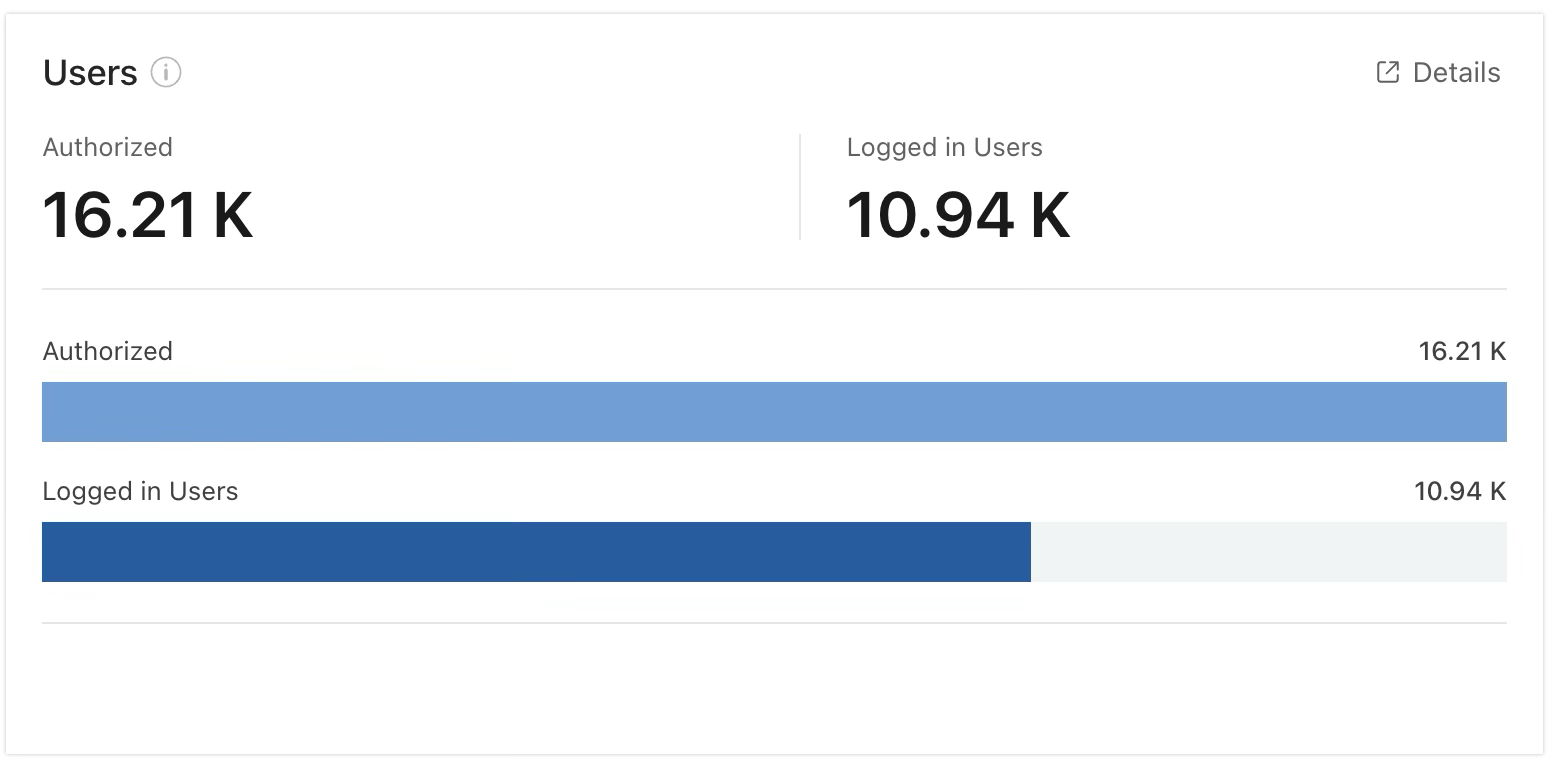
The Users tile provides the following details about your iManage Work users:
The number of authorized/enabled users
The number of logged-in users
A bar chart that breaks down the content into segments for the following categories:
The number of authorized users
The number of logged-in users
An example of the Users tile is shown in the figure below.
NOTES:
An authorized user is identified as one who's enabled in iManage Control Center to sign in to iManage Work.
Data is collected from all iManage Work libraries.
The Users tile is displayed in the Users & Access section. This section is updated daily and shows data for the previous 30 days by default. To change the reporting period for the section, select one of these preset ranges:
1d: Previous day
7d: Previous 7 days
30d: Previous 30 days
View a more detailed report
To open a page that displays more details about users, select the  Details icon in the Users tile. For more information, refer to Users Over Time report details.