The Details tab on the Collaboration page lets you manage the Document sharing feature and view and edit collaboration settings. To access this tab in iManage Control Center, browse to Settings > Collaboration and then select the Details tab.
NOTES:
If you access the Collaboration page while the Document sharing feature is disabled, the Details tab will show only the Document sharing setting, as shown in the following figure.
Figure: Collaboration page - Details tab with Document sharing disabled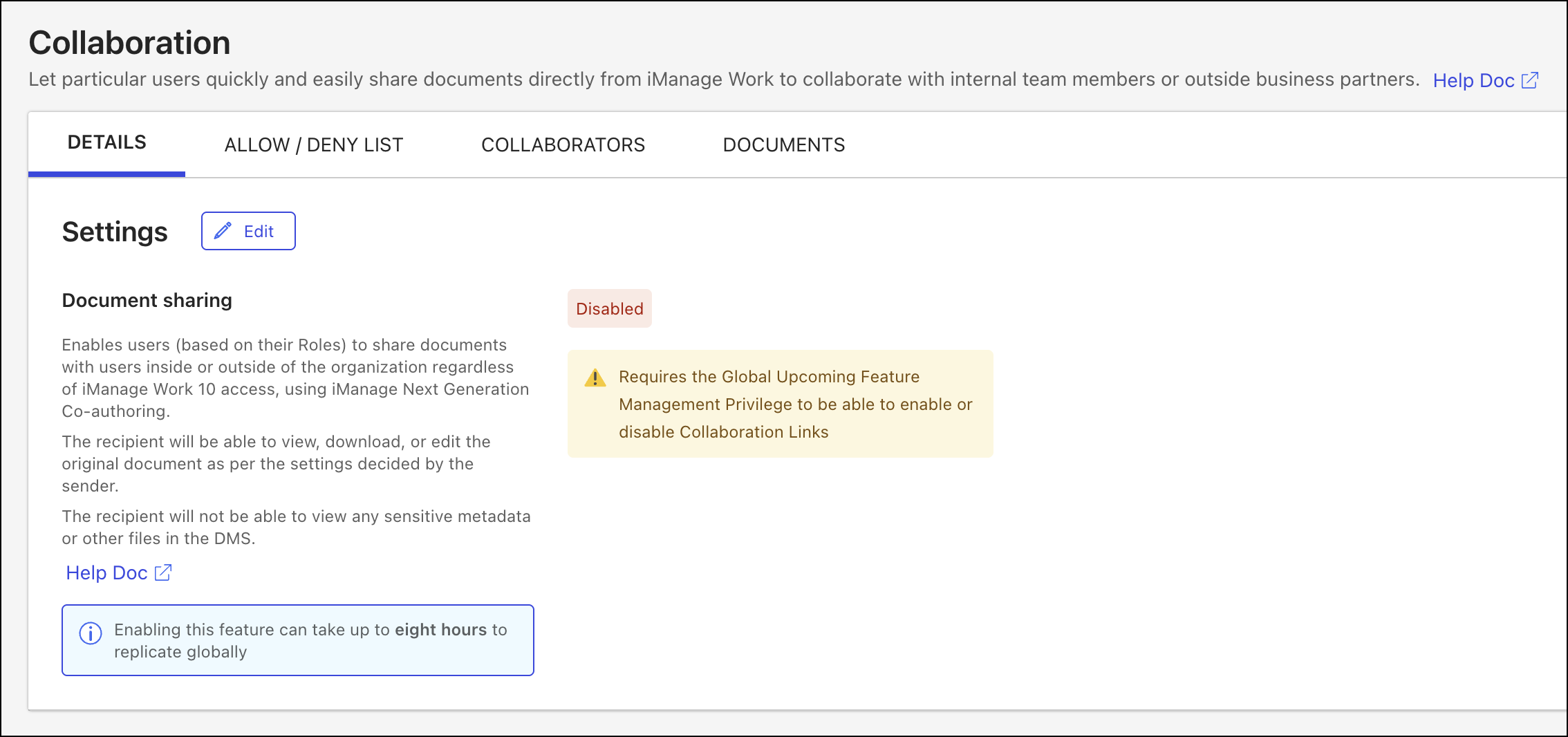
In this scenario, the Document sharing setting is displayed as Disabled. To enable the Document sharing feature, refer to the steps in Enable or disable the Document sharing feature.
The Edit button in the Settings section of the Details tab is used to enable and disable the Document sharing feature and is only visible to users assigned to a Global Management role with the Upcoming Feature Management privilege.
The following figures provide an example of the settings on the Details tab of the Collaboration page when the Document sharing feature is enabled.
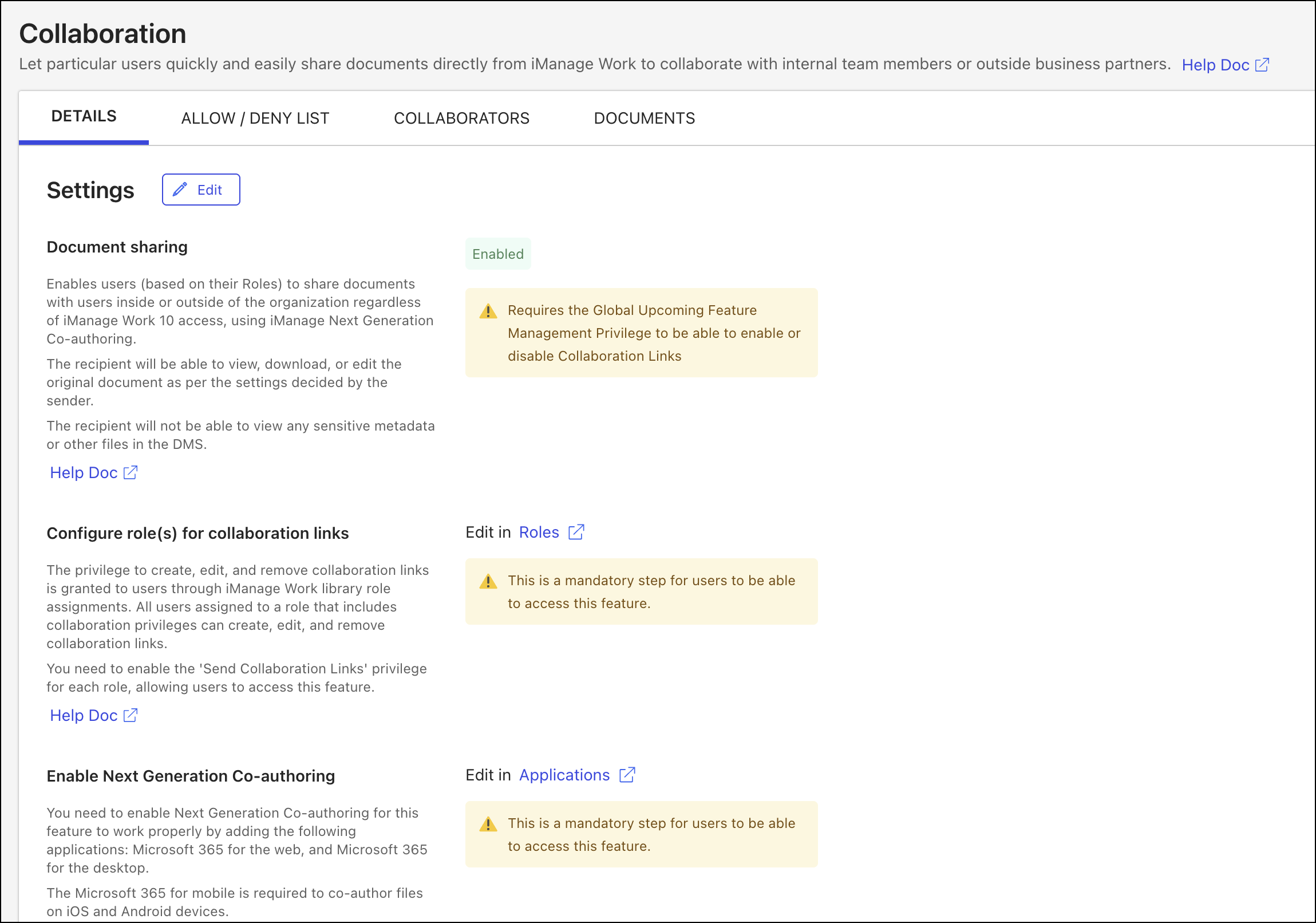
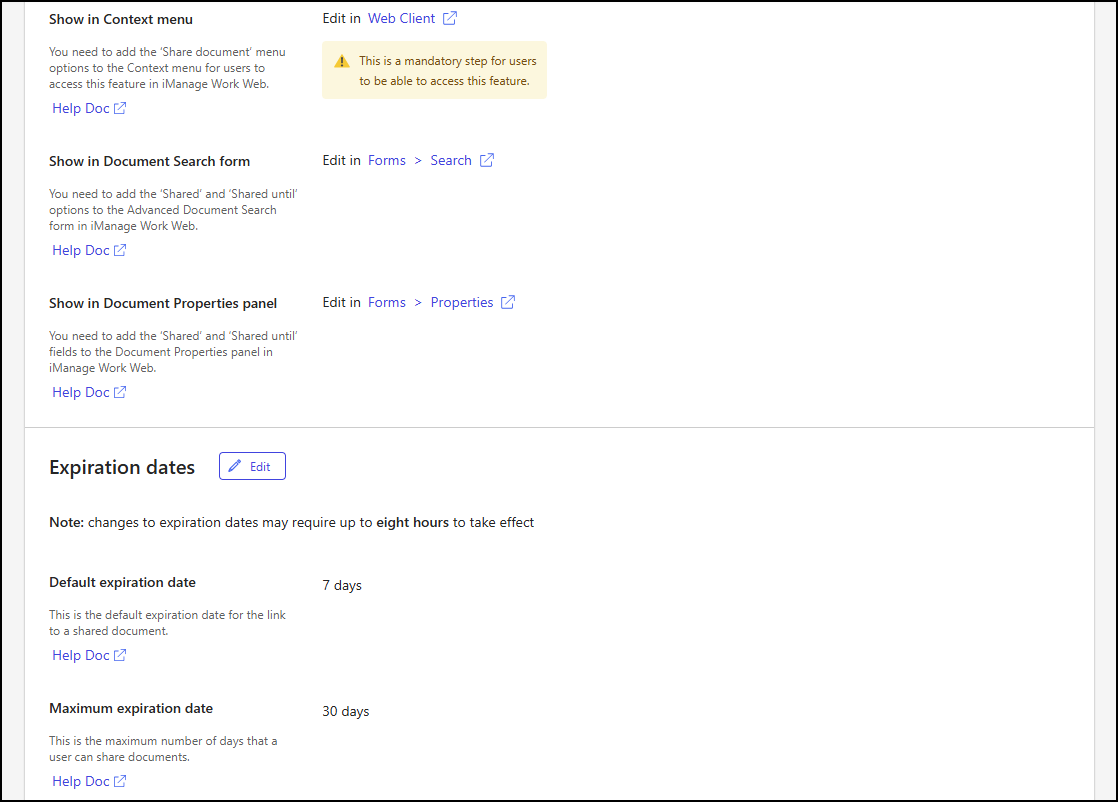
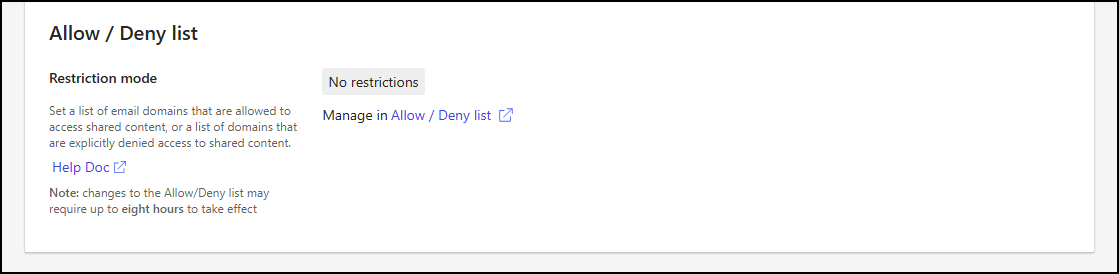
The following settings are available on the Details tab.
Table: Details tab settings
Setting | Description |
|---|---|
Settings | |
Document sharing | This setting shows the state of the Document sharing feature. This feature controls whether users, based on their roles, can share documents with individuals inside or outside the organization, regardless of their iManage Work 10 access, using iManage Next Generation Co-authoring. For instructions on enabling or disabling this feature, refer to Enable or disable the Document sharing feature. NOTE: To enable or disable the Document sharing feature, the user signed in to iManage Control Center must be assigned to a Global Management role which has the Upcoming Feature Management privilege. |
Configure role(s) for collaboration links | This setting describes how the privilege to create, edit, and remove collaboration links is granted to users through iManage Work library role assignments. This is a required step for users to access this feature. For more information about managing these role assignments, refer to Manage collaboration link privileges. To manage iManage Work library role assignments in Control Center, select the Roles link to open the Roles page. |
Enable Next Generation Co-authoring | This setting describes how the Microsoft 365 for the web and Microsoft 365 for the desktop applications must be enabled for the collaboration links feature to function with iManage Next Generation Co-authoring. This is a required step for users to access this feature. For more information about enabling these applications, refer to Add applications needed for collaboration. To enable these applications in Control Center, select the Applications link to open the Applications page. |
Show in Context menu | This setting describes how document sharing menu options must be added to the context menu to allow users to access the collaboration links feature in iManage Work Web. This is a required step for users to access this feature. For more information about managing context menu actions, refer to Manage context menus. To manage context menus in Control Center, select the Web Client link to open the Context Menus tab on the Web Client page. |
Show in Document Search form | This setting describes how document sharing properties must be added to the document search form to allow users to include these properties when performing advanced searches in iManage Work clients. For more information about managing document searches, refer to Manage collaboration link document search properties. To manage document search properties in Control Center, select the Forms > Search link to open the Search tab on the Forms page. |
Show in Document Properties panel | This setting describes how document sharing properties must be added to the document properties form to allow users to include these properties when editing or viewing a document profile in iManage Work clients. For more information about managing document properties, refer to Manage collaboration link document properties. To manage document properties in Control Center, select the Forms > Properties link to open the Properties tab on the Forms page. |
Expiration dates | |
Default expiration date | This setting specifies how many days a link to a shared document stays active. Values: 1–30 days Default: 7 days For instructions on changing the default expiration date, refer to Change the default expiration date. |
Maximum expiration date | This setting describes that the maximum duration for sharing a document is 30 days. This setting can’t be changed. |
Allow / Deny list | |
Restriction mode | This setting indicates whether there are any restrictions on accessing shared content. These restrictions are defined by specifying email domains that are either allowed or blocked from accessing the content. This setting shows:
Shared content access is managed through the Allow / Deny List tab on the Collaboration page. For more information, refer to Allow / Deny List tab. To manage shared content access in Control Center, select the Allow/Deny List link to open the Allow / Deny List tab on the Collaboration page. |
Change the default expiration date
NOTE: To change the default expiration date, the user must be assigned to a Global Management role that has the Settings Management privilege. For more information, refer to Global privilege descriptions.
In iManage Control Center, browse to Settings > Collaboration.
Select the Details tab.
In the Expiration dates section of the Details tab, select Edit.
In the Default expiration date field of the Edit expiration dates dialog, enter a value from 1–30.
Figure: Edit expiration dates dialog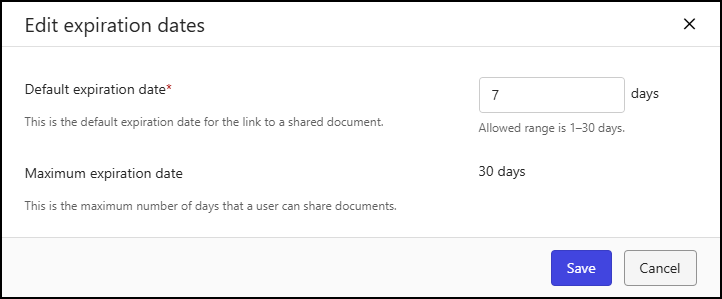
Select Save.
NOTE: Changes to the default expiration date can take up to eight hours to become effective.