Overview
The Analytics dashboard gives you a single-view snapshot of collected system data. Its tiles are grouped into sections so you can quickly review storage, content, users, access, application activity, and API usage.
Storage, Content & Structure
This section summarizes overall storage usage, storage by document type, and counts of documents, emails, workspaces, and containers. Data is collected weekly, and the section displays results from the most recent collection period. Tiles show:
iManage Work storage usage
Document and email counts
Storage usage by document type
Workspace counts by the default iManage Work security type
Container counts by container type
By default, the section includes data from all iManage Work libraries. Use the library selector to display data for one library, multiple libraries, or all libraries.
Users & Access
This section summarizes user access, including authorized users, signed-in users, and the users who signed in during the reporting period. Tiles show:
Authorized and signed-in user counts
A list of users who signed in
Data is collected daily. By default, the section displays the previous 30 days. To change the reporting period, select one of these preset ranges:
1d: Previous day
7d: Previous 7 days
30d: Previous 30 days
Application activity
This section summarizes application usage, including active users and document uploads. Tiles show:
Active users by application
Document uploads by application
Data is collected daily. By default, the section displays the previous 30 days. To change the reporting period, select one of these preset ranges:
1d: Previous day
7d: Previous 7 days
30d: Previous 30 days
API Calls
This section summarizes API usage for the previous 30 days. Its tile shows the total number of API calls and breaks that total down into chargeable, and non-chargeable APIs.
NOTE: The API Calls section only displays if the Cloud API Analytics upcoming feature is active. This feature is currently available to select customers participating in a private Early Access Program (EAP). For instructions on how to enable this feature if you’re participating in the EAP, refer to Cloud API Analytics feature activation.
Accessing the Cloud Analytics dashboard
To view the Cloud Analytics dashboard in iManage Admin Portal:
Go to https://cloudimanage.com/admin/ and sign in with your iManage credentials.
NOTE: To view the Cloud Analytics dashboard, the user account used to sign in to iManage Admin Portal must be assigned either the Cloud Analytics Admin or Viewer role. For more information about granting user access, refer to Access Policy.
Browse to Cloud Analytics > Analytics.
An example of the Analytics page is shown in the figures below.
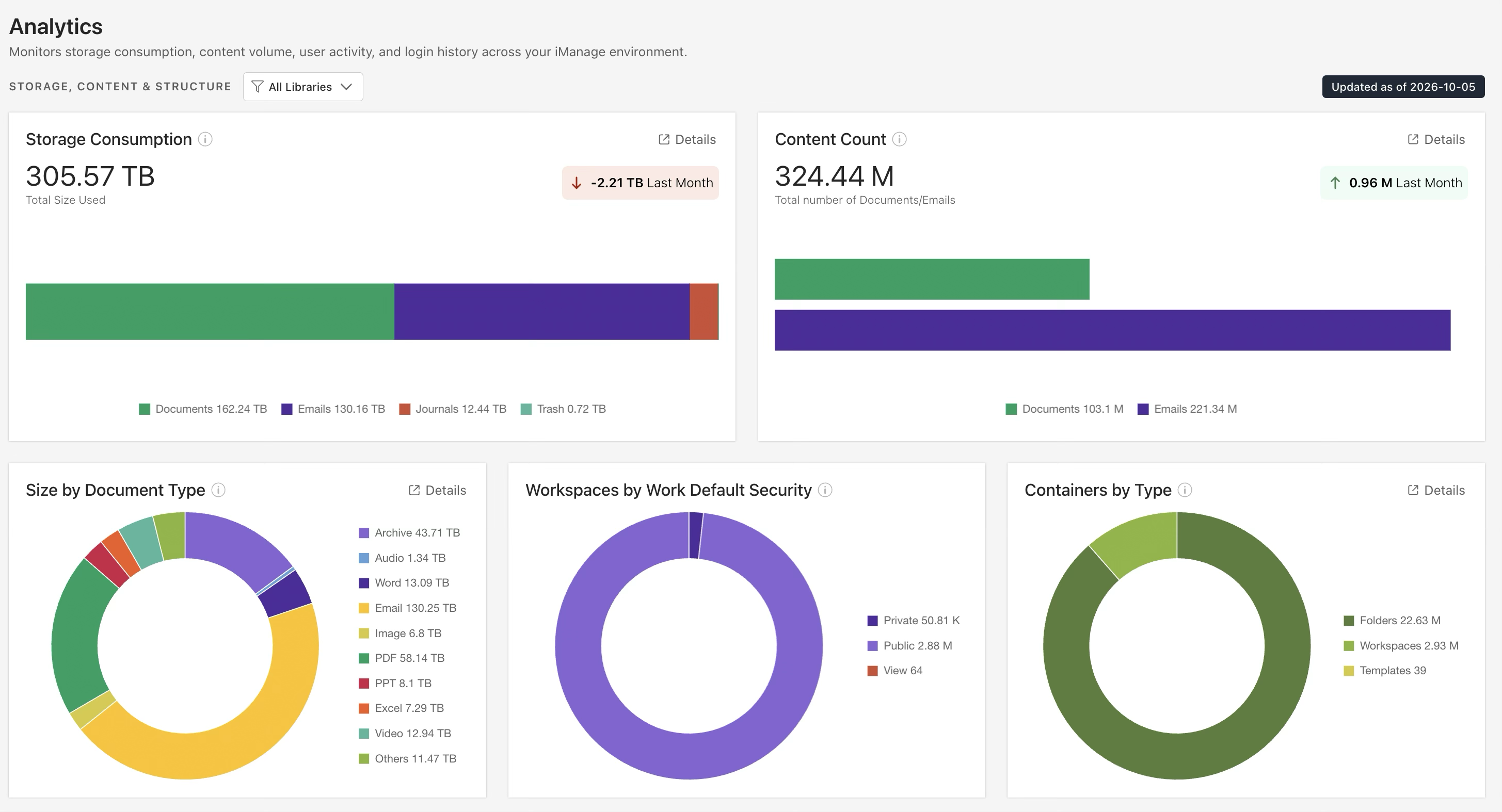
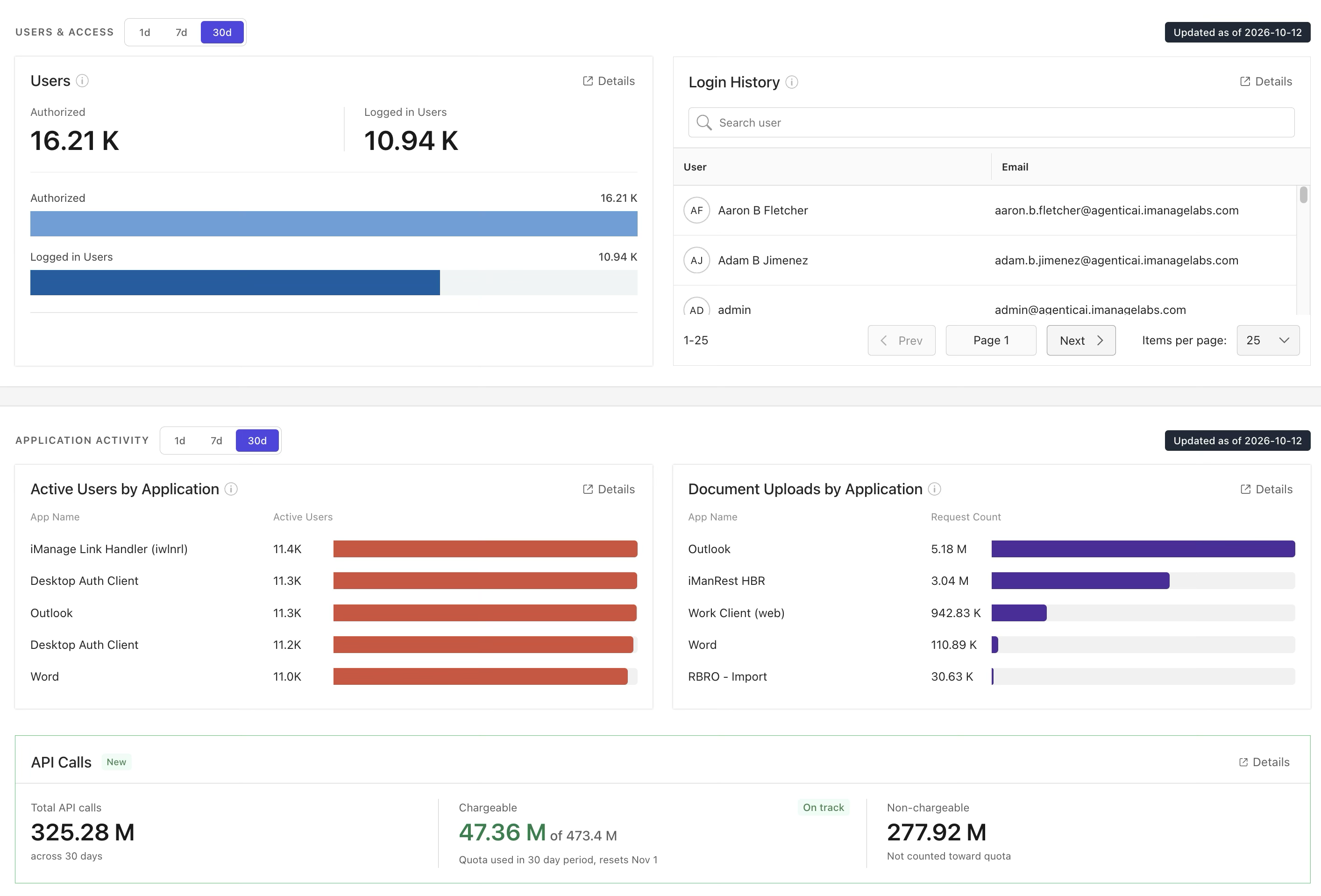
More information about each data point on the Analytics page is provided in the following sections.
- Storage Consumption dashboard tile
- Content Count dashboard tile
- Size by Document Type dashboard tile
- Workspaces by Work Default Security dashboard tile
- Containers by Type dashboard tile
- Users dashboard tile
- Login History dashboard tile
- Active Users by Application dashboard tile
- Document Uploads by Application dashboard tile
- API Calls dashboard tile